How to use Regimo
The complete guide to every screen, button and number in the app — with real screenshots. Read it top to bottom, or jump to the part you need.
Getting started
Your first five minutes
Regimo (formerly Eat & Run) is a fitness and nutrition app with an AI coach built in. You tell it about yourself once; it works out your daily calorie and macro targets, builds a weekly workout plan, and then helps you track meals, sets and body measurements as you go. This is what happens the first time you open it.
Sign in
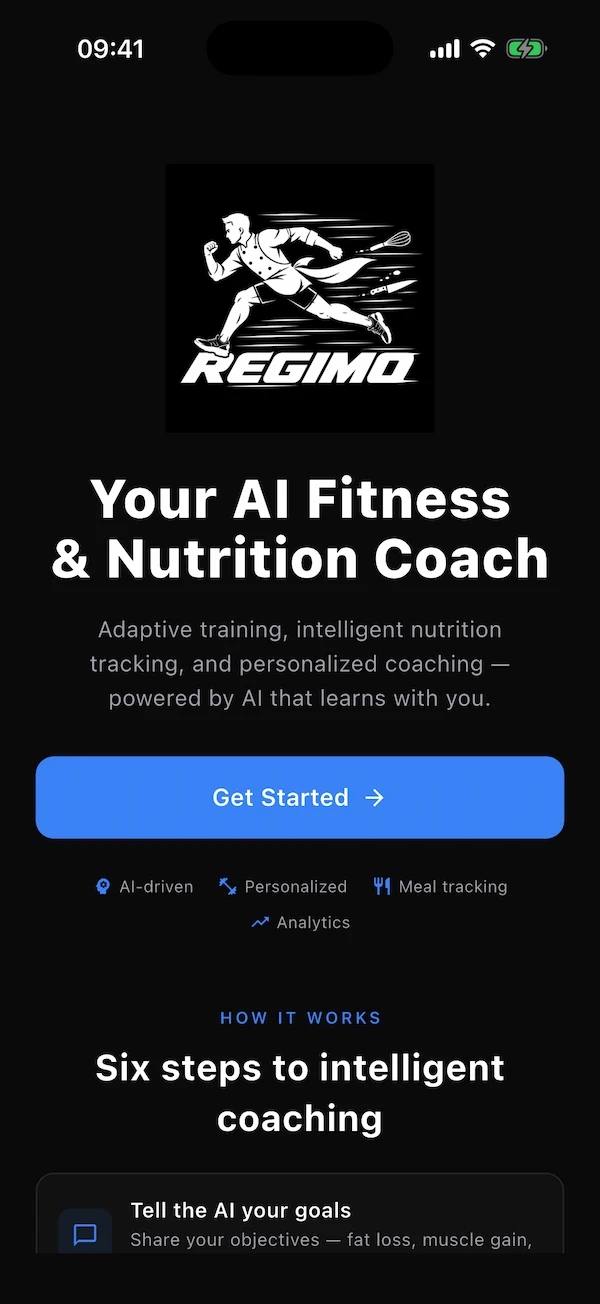
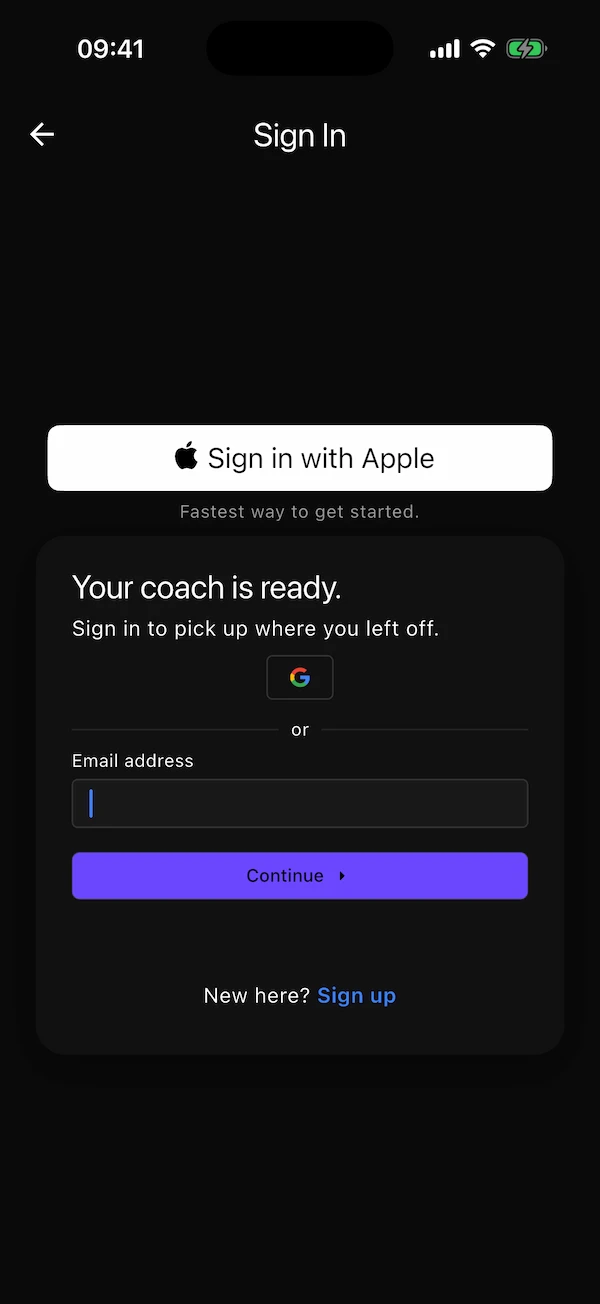
Tap Get Started and sign in with Apple, Google, or your email address. With email there is no password to invent — you receive a one-time code.
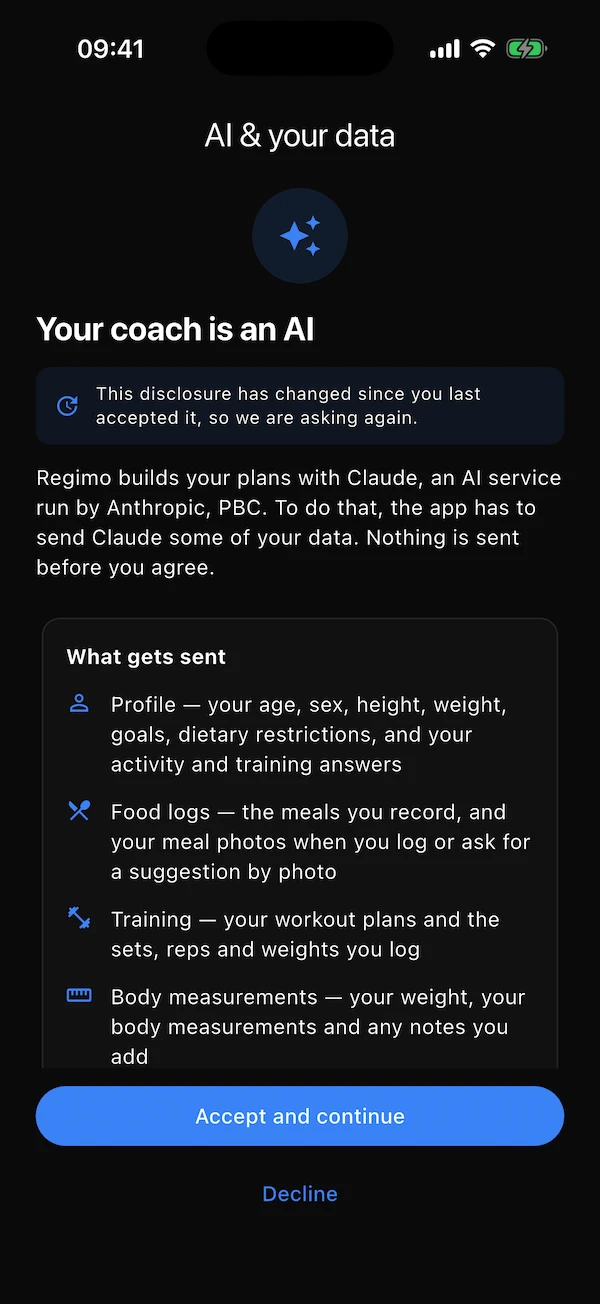
Read the AI & your data notice
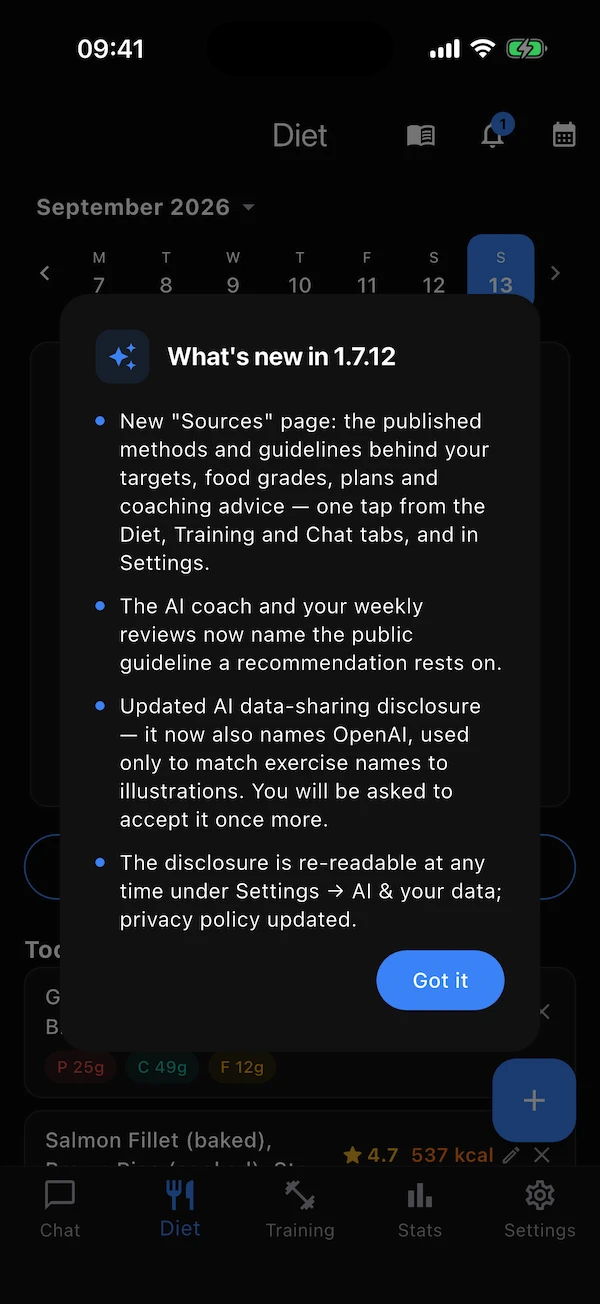
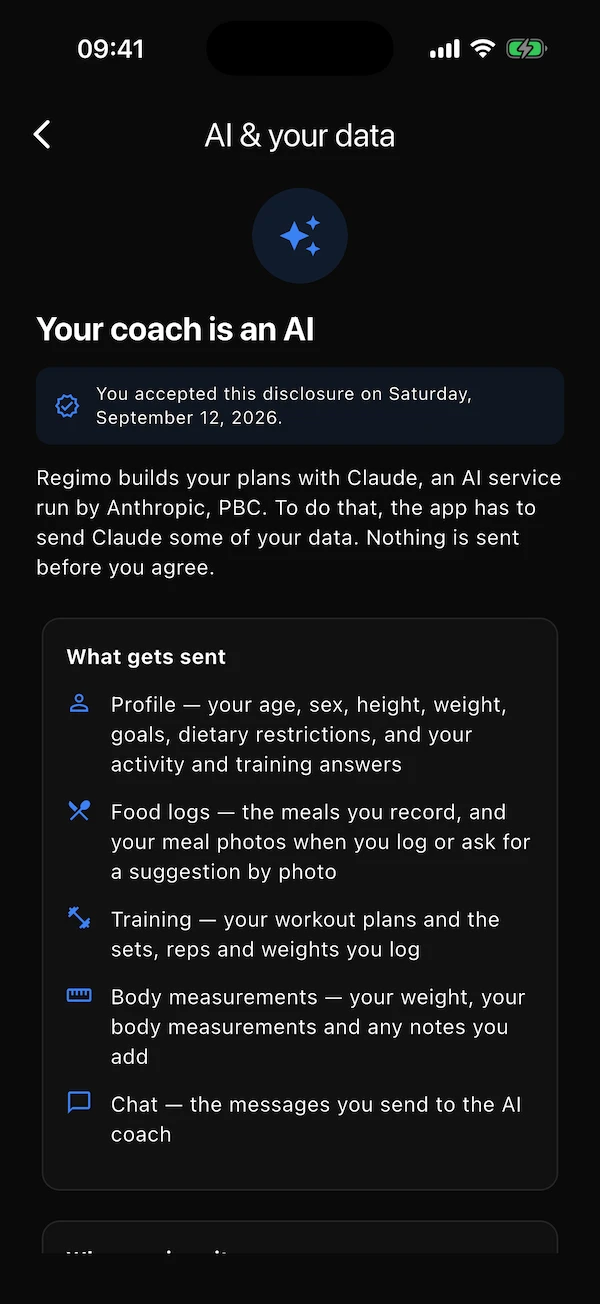
Before anything else the app tells you exactly which data it sends to the AI, to whom, and when. You accept it once to continue — the coach cannot work without it — and you can re-read it any time in Settings → AI & your data.
Answer five short screens about yourself
Goals, body, how active your day is, how you train, and what you eat. About two minutes. Every answer can be changed later in Settings → Profile.
Generate your targets and your plan
Open the Diet tab and tap Generate Targets; open Training and tap Generate Plan. Each takes a few seconds.
Track as you go
Log meals, tick off sets and weigh yourself when you can. The more you log, the better the coach knows you.
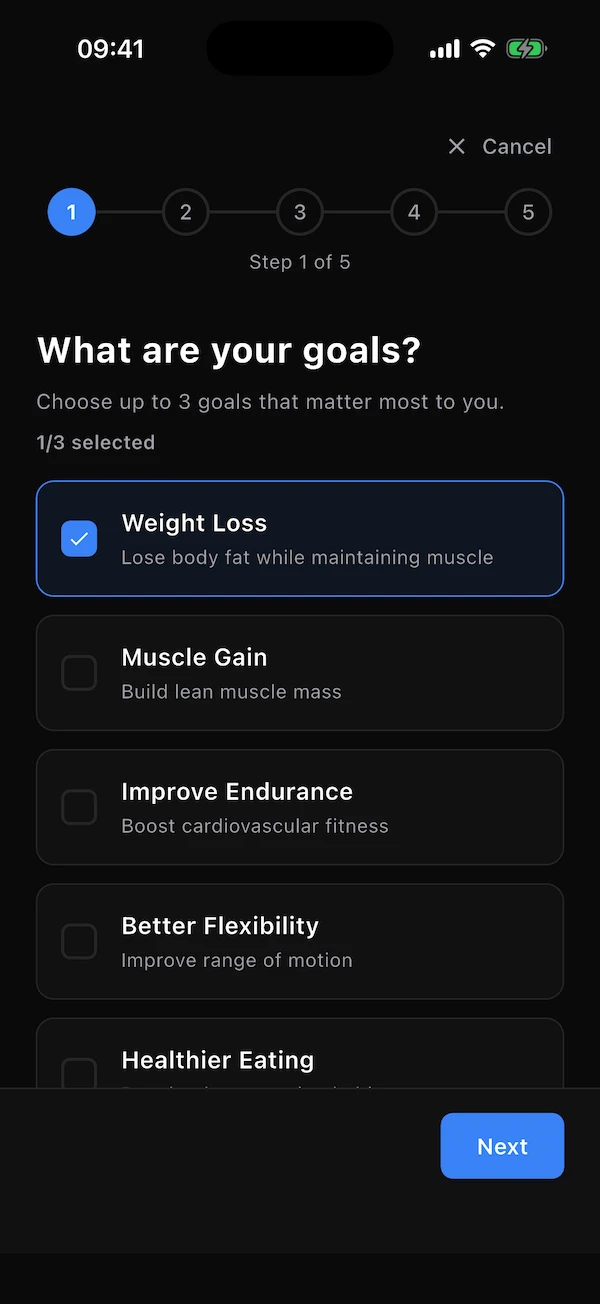
The five screens of the questionnaire
Progress shows at the top; every screen has Back and Next, and nothing is saved until you tap Finish on the last one, so you can go back and change an answer freely. The same screens open from Settings → Profile (the pencil) whenever you want to edit something.
- 1 · Your goals
- Pick up to three: weight loss, muscle gain, endurance, flexibility, healthier eating, stress management, injury recovery or sport performance. They steer both your calorie target and the kind of plan you get.
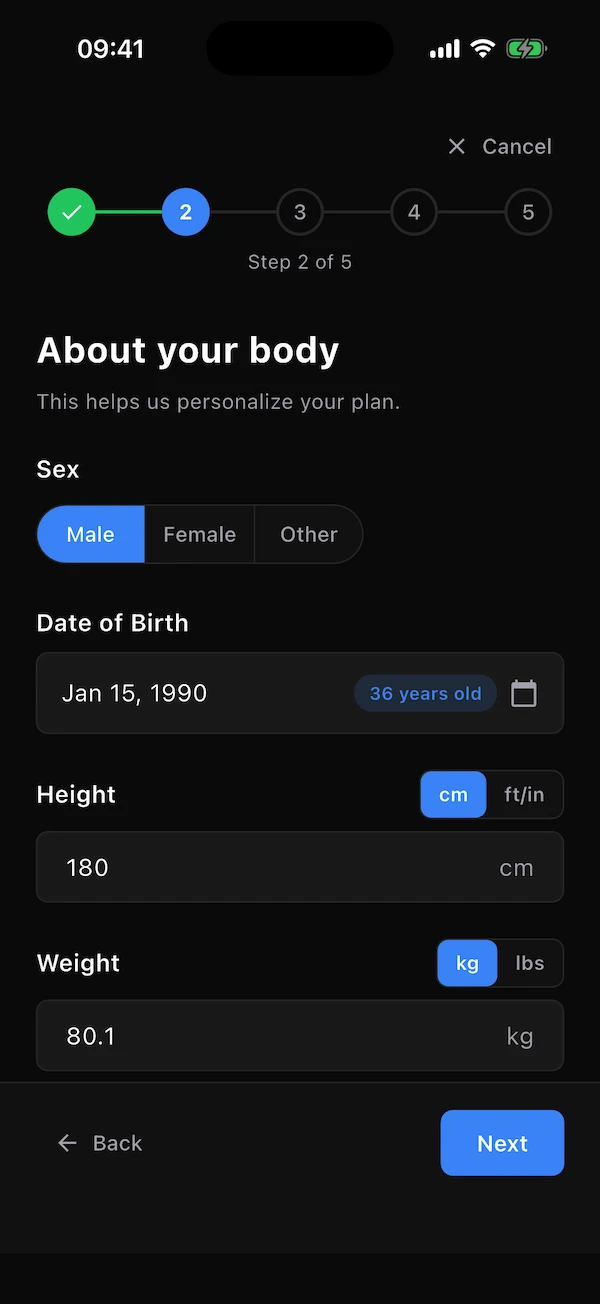
- 2 · Your body
- Sex, date of birth, height and weight. Switch between cm/kg and ft-in/lbs with the small toggles — the app stores everything in metric and shows it your way.
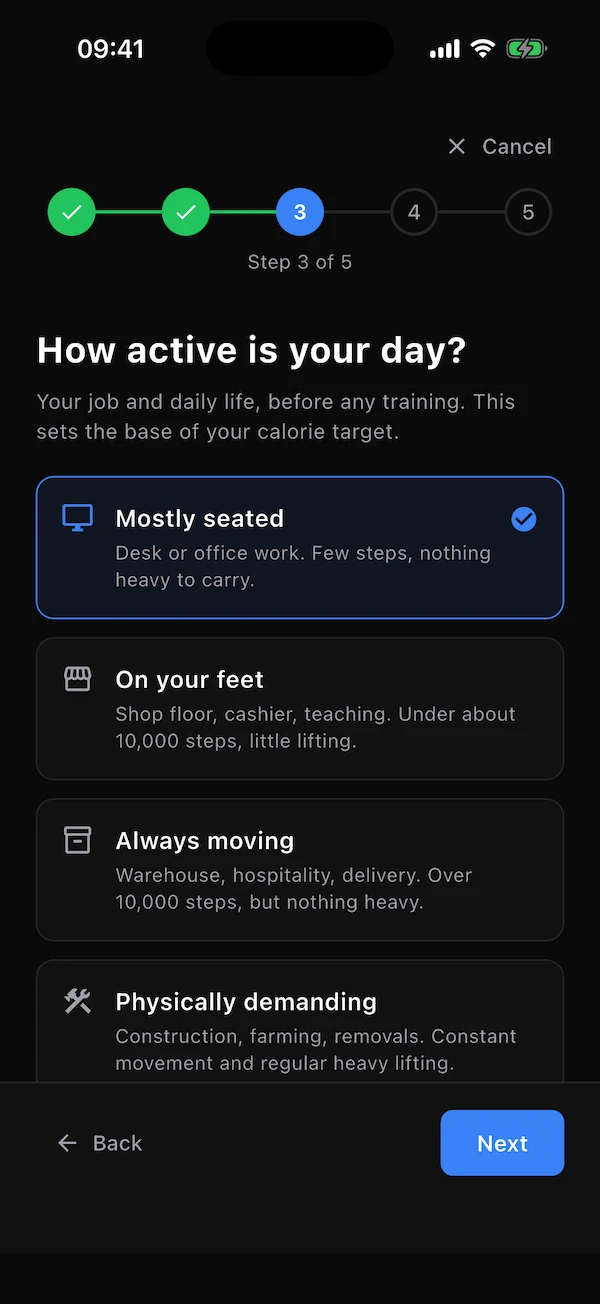
- 3 · Your day
- How demanding your ordinary day is, before any training: mostly seated, on your feet, always moving, or physically demanding. Don't count workouts here.
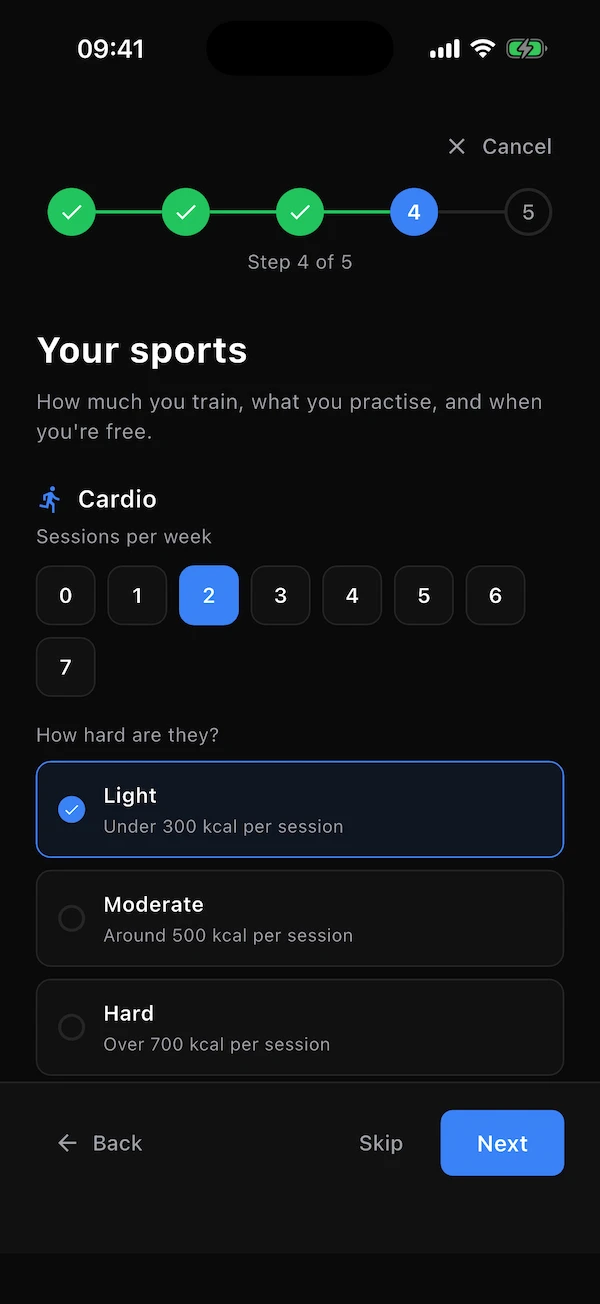
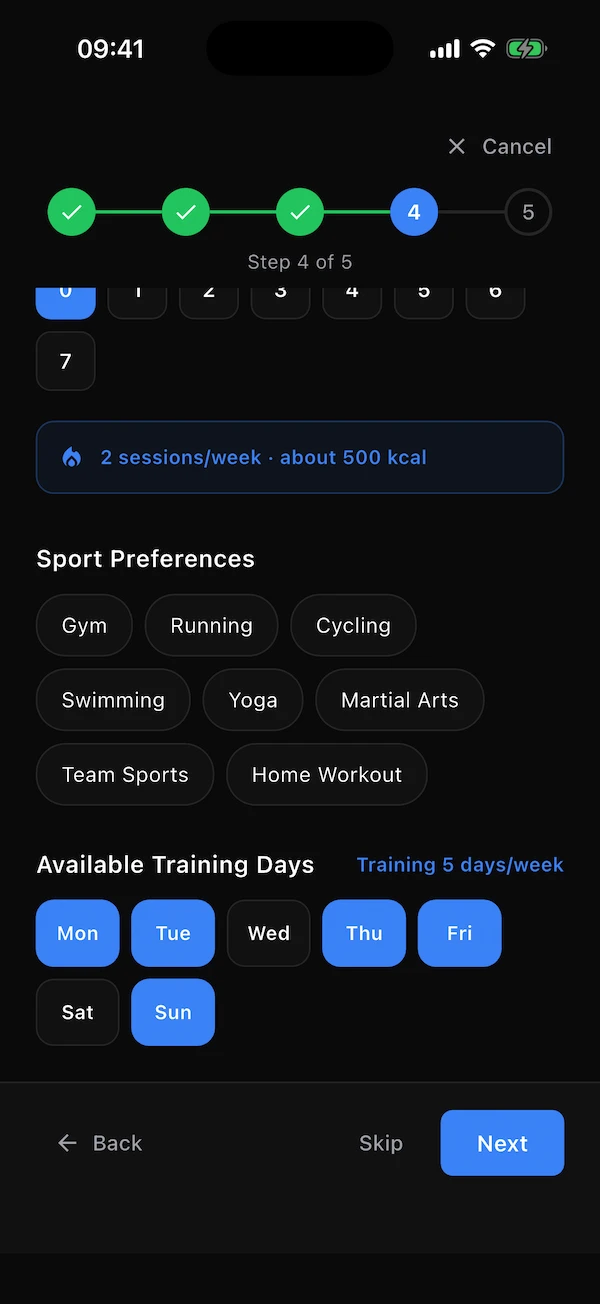
- 4 · Your sports
- How many cardio and strength sessions you do each week and how hard they are (a running total shows what that adds up to), which sports you practise, and which weekdays you can train. The days you tick become your workout days.
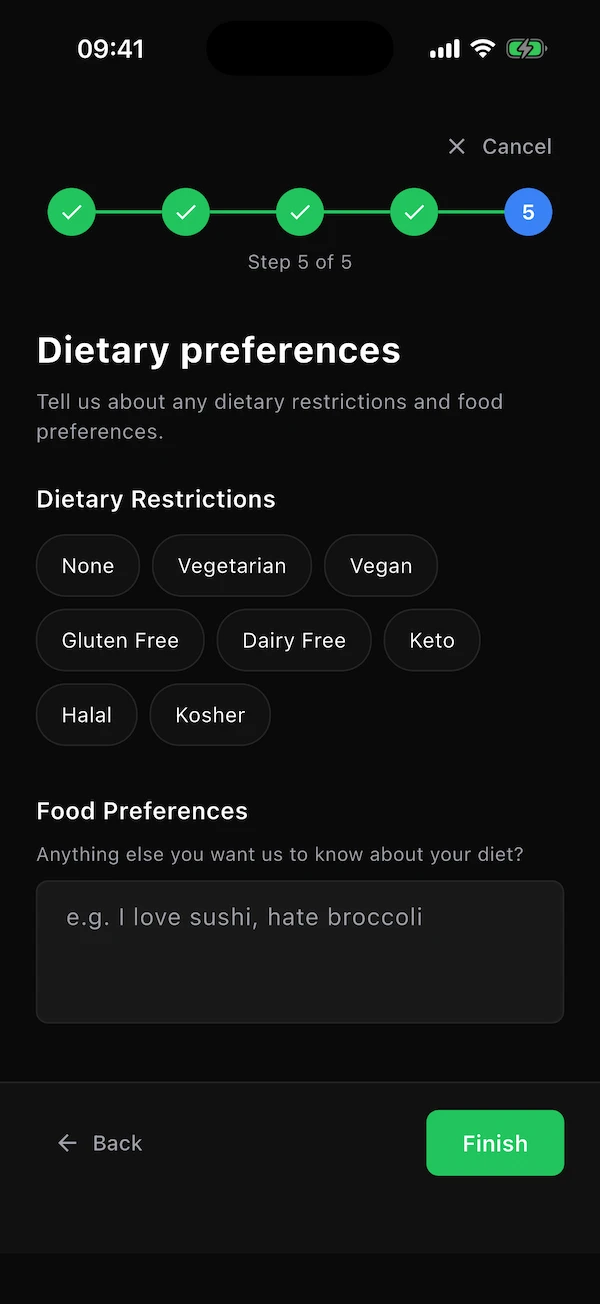
- 5 · Your diet
- Dietary restrictions (vegetarian, vegan, gluten-free, dairy-free, keto, halal, kosher — or none) and a free-text line for anything else, like foods you love or hate.
Finding your way around
The bar at the bottom has five tabs. Everything in the app lives in one of them.
Chat
Talk to the AI coach in plain language. It knows your profile, meals and training.
Diet
Today's calories and macros, your food log, meal suggestions and nutrition graphs.
Training
Your weekly workout plan: log sets, swap exercises, edit days, open exercise guides.
Stats
Weight and body measurements over time, plus every exercise's performance graph.
Settings
Profile, features on/off, coaching, language, theme, badges, this guide, sources, sign out.
Two small icons sit in the top bar of most tabs: the bell (Diet and Training) opens your notifications — see Notifications — and the book (Chat, Diet, Training) opens the list of sources behind the app's numbers and advice — see Your data & privacy.
Your profile & numbers
Where your calorie target comes from
Your daily target is calculated, not guessed, and every input is something you typed in the questionnaire. Knowing how the pieces fit together helps you answer honestly — and understand why the number moves when you change something.
Where to find it:SettingsProfilepencil
Your day and your training are two separate questions
Daily activity is what your ordinary day demands before any training — mostly seated (desk work), on your feet (shop floor, teaching), always moving (warehouse, delivery) or physically demanding (construction, farming). This sets the base of your target.
Training is deliberate exercise, counted on top. Instead of a vague “activity level” you say how many cardio sessions and how many strength sessions you do per week, and how hard they are. Cardio intensity is about energy per session (light under 300 kcal, moderate around 500, hard over 700); strength intensity is about effort (light comfortable sets, medium steady work, hard always pushing for more). As you choose, the screen shows a running total such as “2 sessions/week · about 500 kcal”.
The calculation, in plain words
The app starts with the energy your body uses at rest (from your sex, age, height and weight), scales it by how demanding your day is, then adds the energy of the cardio and strength sessions you told it about. That is your daily burn.
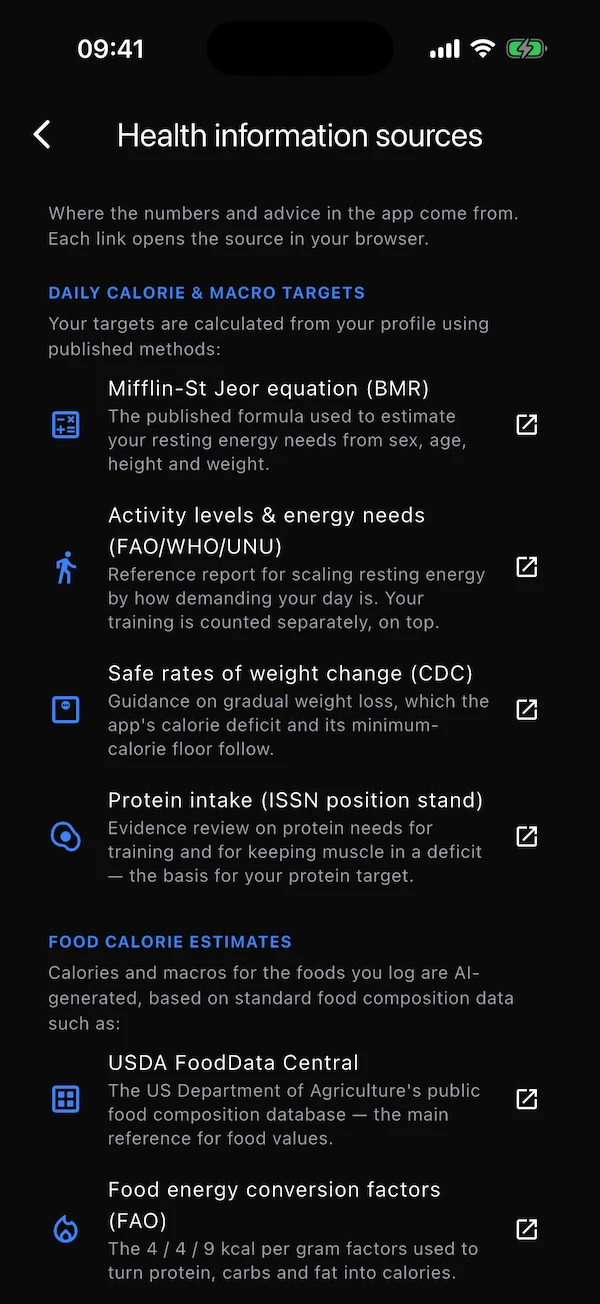
Your goal then shifts it: fat loss sets a deficit, muscle gain a modest surplus, anything else keeps it level. Protein is set from your desired weight, and the calories left over are split between carbs and fat to suit your training — more carbs if you do a lot of cardio, more fat if you mostly lift. Every method behind this is a published one; the list is in Settings → Health information sources and behind the How is this calculated? link on the Diet tab.
Diet tab
Track what you eat, without the fuss
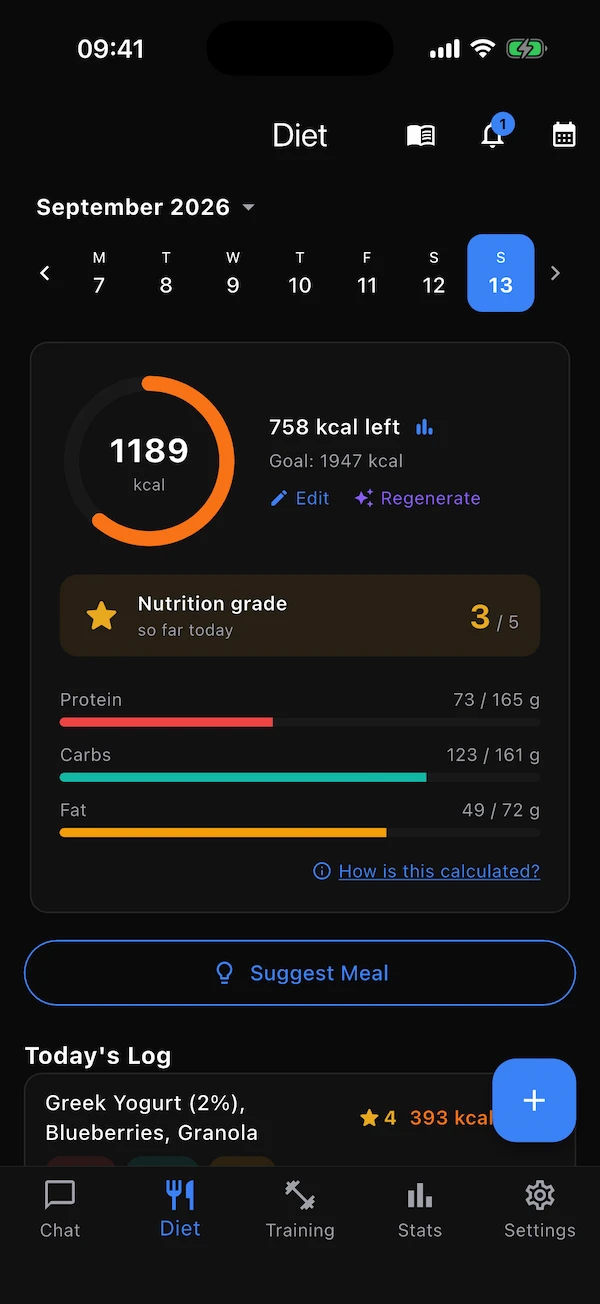
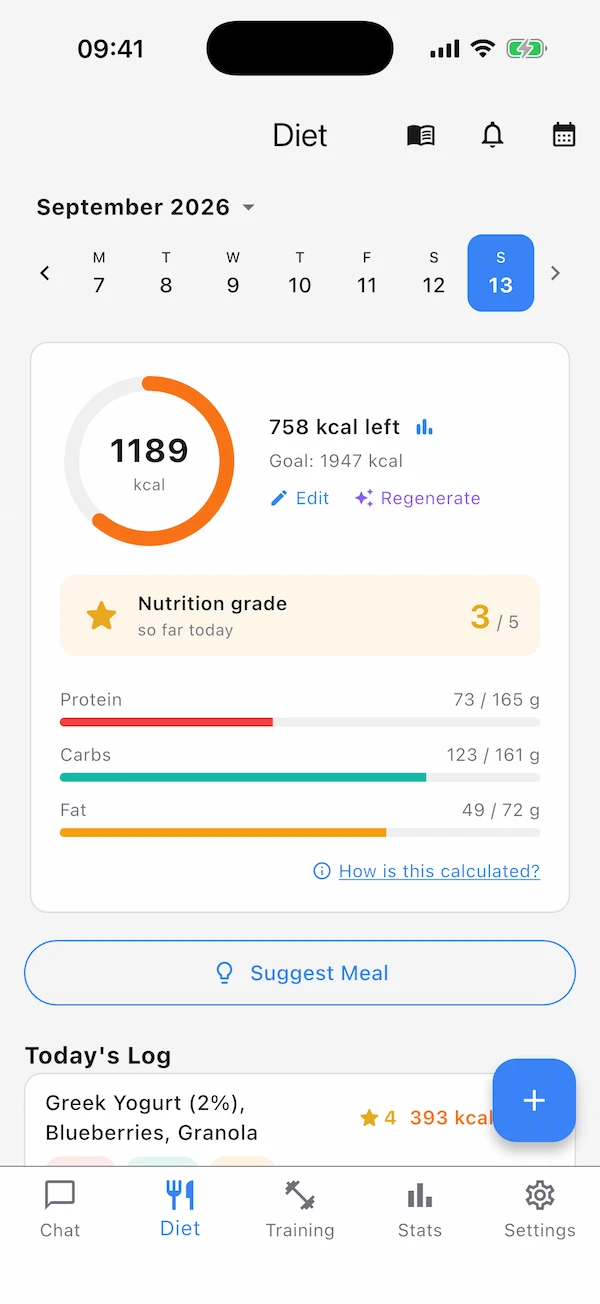
The Diet tab is one day at a time: how much you have eaten against your targets, the meals you logged, and the tools to add more. Describe a meal in your own words or snap it — the AI does the counting.
Reading the screen
- Month & day strip
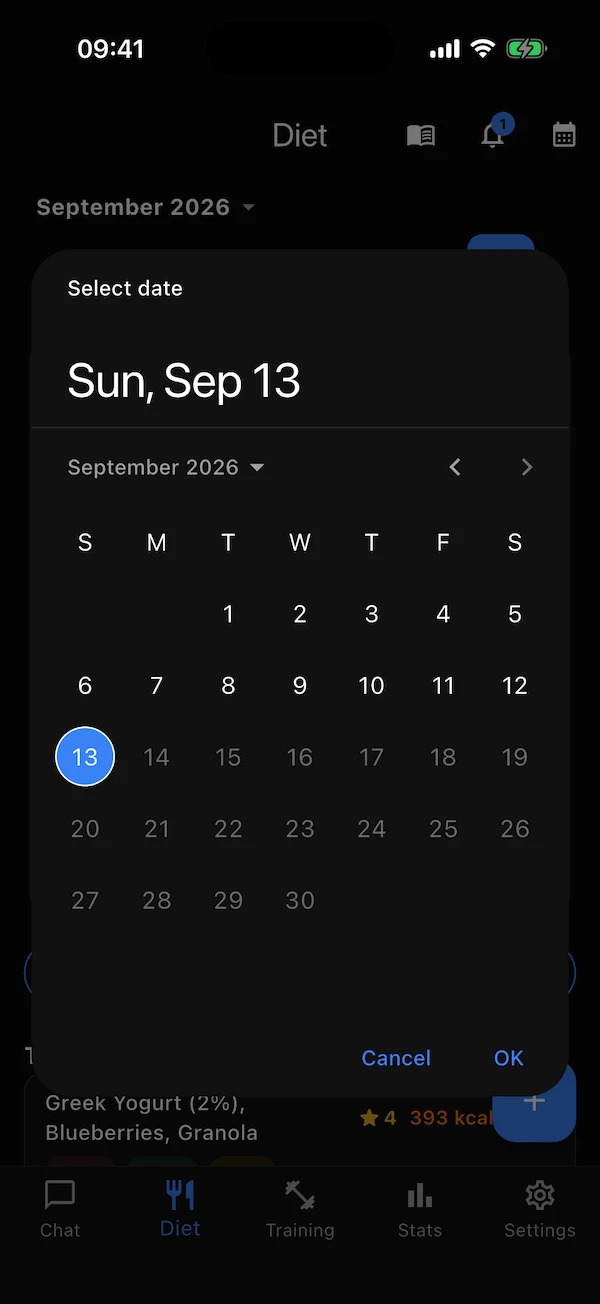
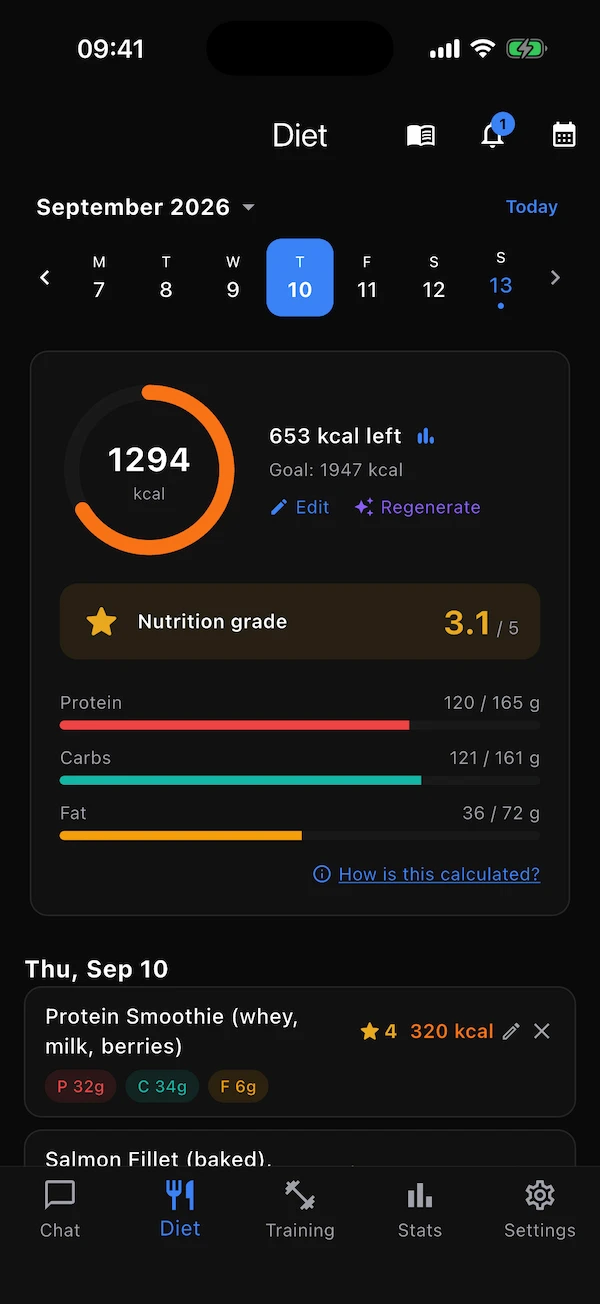
- The row of days is the current week; today is highlighted and future days are greyed out. Use the arrows to move a week at a time, tap the month title or the calendar icon to jump to any day in the last 90 days, and Today to snap back.
- Calorie ring
- Calories eaten so far in the middle, your goal beside it, and how much is left — or how far over you are, with the percentage.
- Water drop · blue ring
- The drop in the card's top-right corner opens water tracking (or sets it up the first time). Once it is on, a thinner blue ring inside the calorie ring fills with the water you have drunk today, with the litres under the number. See Water tracking below.
- Nutrition grade
- A 0–5 score for the day that combines how healthy the food was with how close your calories landed to the target. It reads “so far today” until the day is over, so it is low in the morning by design.
- Protein · Carbs · Fat
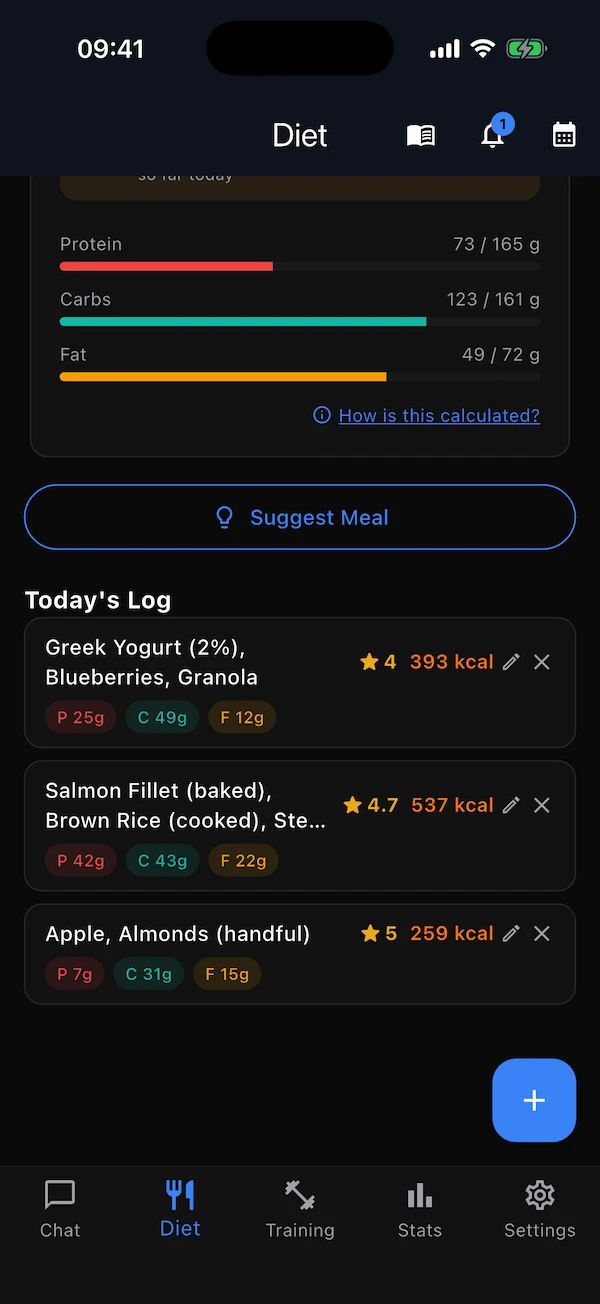
- One bar each, grams eaten against grams targeted, in the same colours used everywhere else in the app.
- Edit · Regenerate
- Two links on the card: Edit changes the four targets by hand; Regenerate asks the AI to rebuild them from your profile (see below).
- How is this calculated?
- Opens the sources screen — the published methods behind the target and the food estimates.
- The log
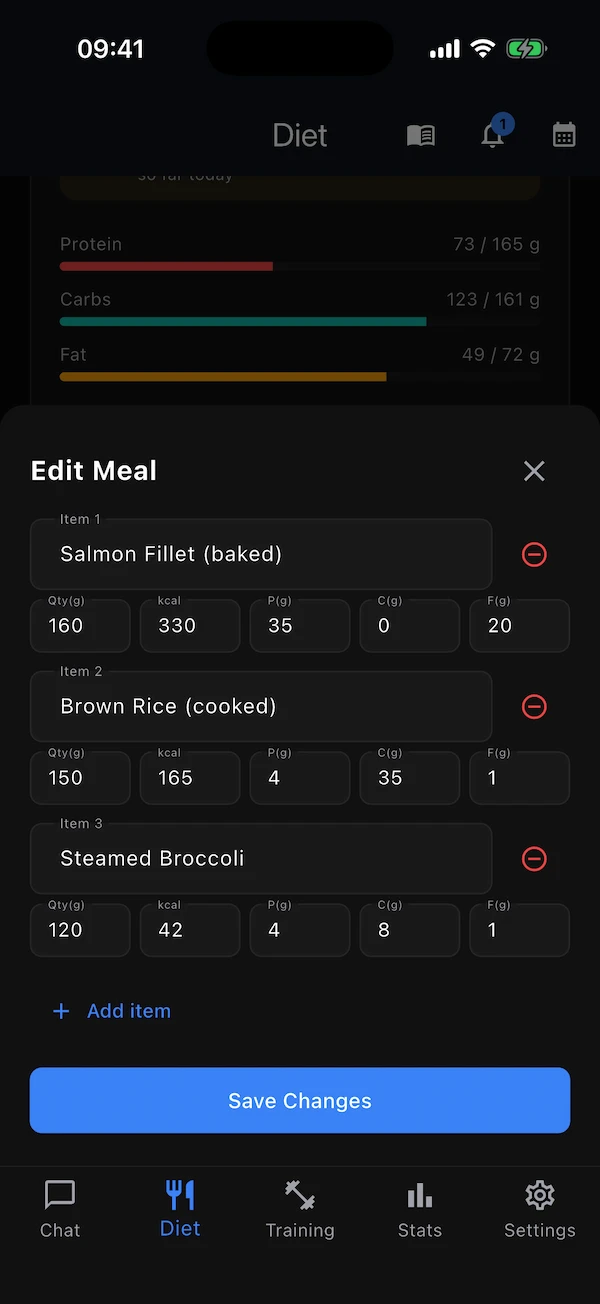
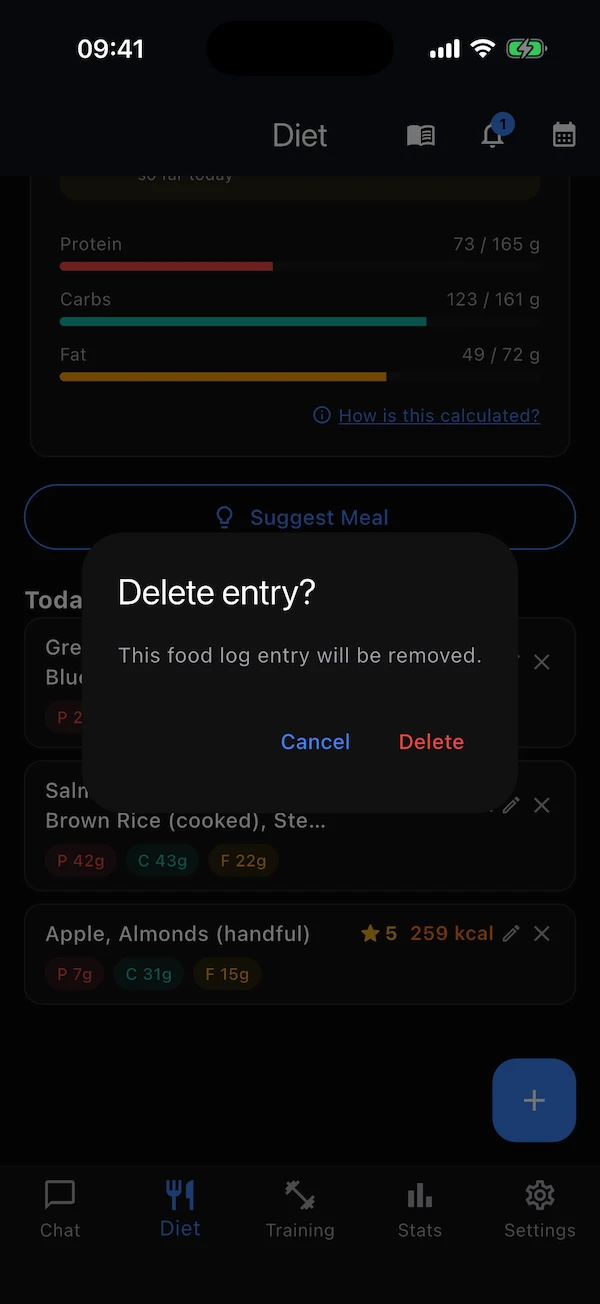
- Every meal you logged, grouped by meal type, with calories, macros and a small gold star — the meal's own health grade. The pencil opens it for editing, the × deletes it (with a confirmation).
Logging a meal
Where to find it:Diet+ button (today only)
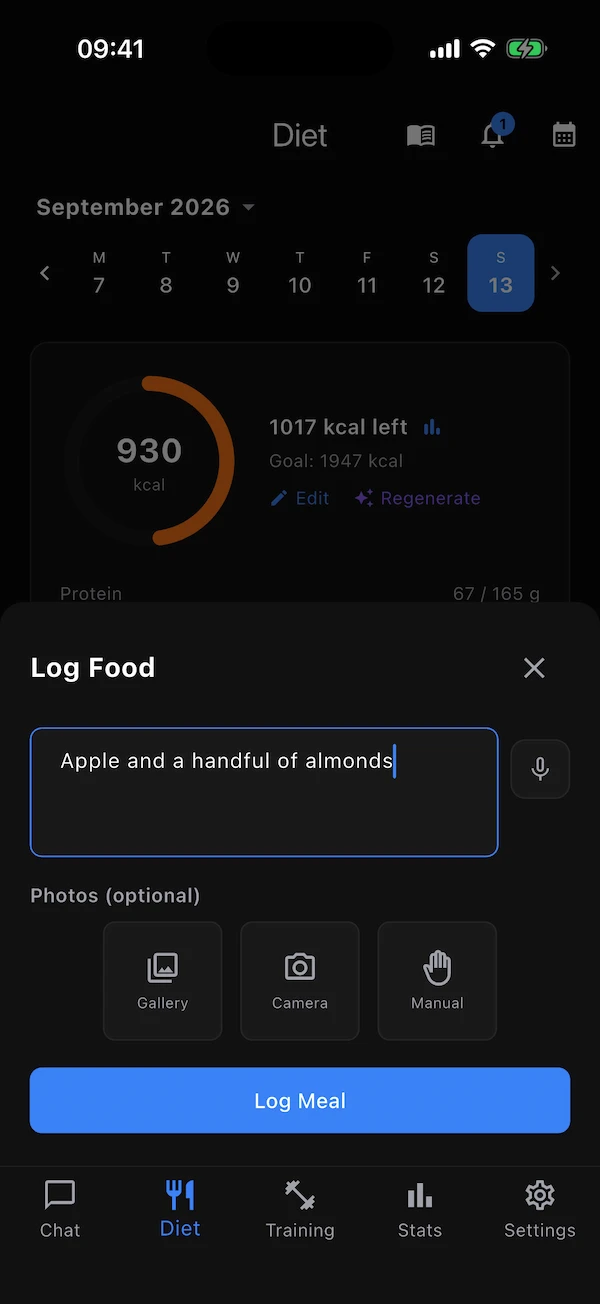
Tap the blue + and describe what you ate — “2 scrambled eggs, toast with butter, orange juice”. Tap the microphone to dictate instead of typing. You can attach up to five photos from your gallery or camera; on a Pro plan the AI reads the plate itself, so a photo alone is enough. Tap Log Meal and the AI works out each item's calories, protein, carbs and fat, grades it, and adds it to today.
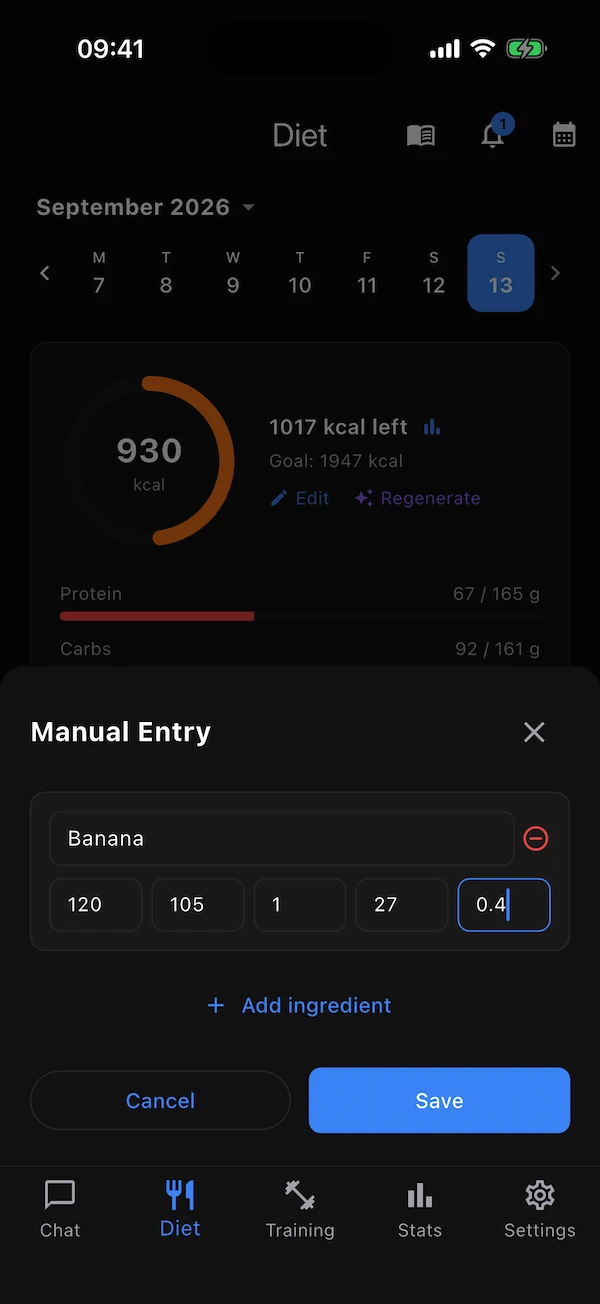
Prefer exact numbers? Tap Manual. The sheet switches to ingredient rows — name, grams, kcal, protein, carbs, fat — and saves them exactly as typed, without the AI.
Microphone
Dictate the description. Works on-device; you may be asked for microphone and speech permissions once.
Gallery
Attach photos of the meal (up to five).
Camera
Take a photo right now.
Manual
Switch to ingredient rows with your own numbers. Save / Cancel.
Not sure what to eat? Ask for a suggestion
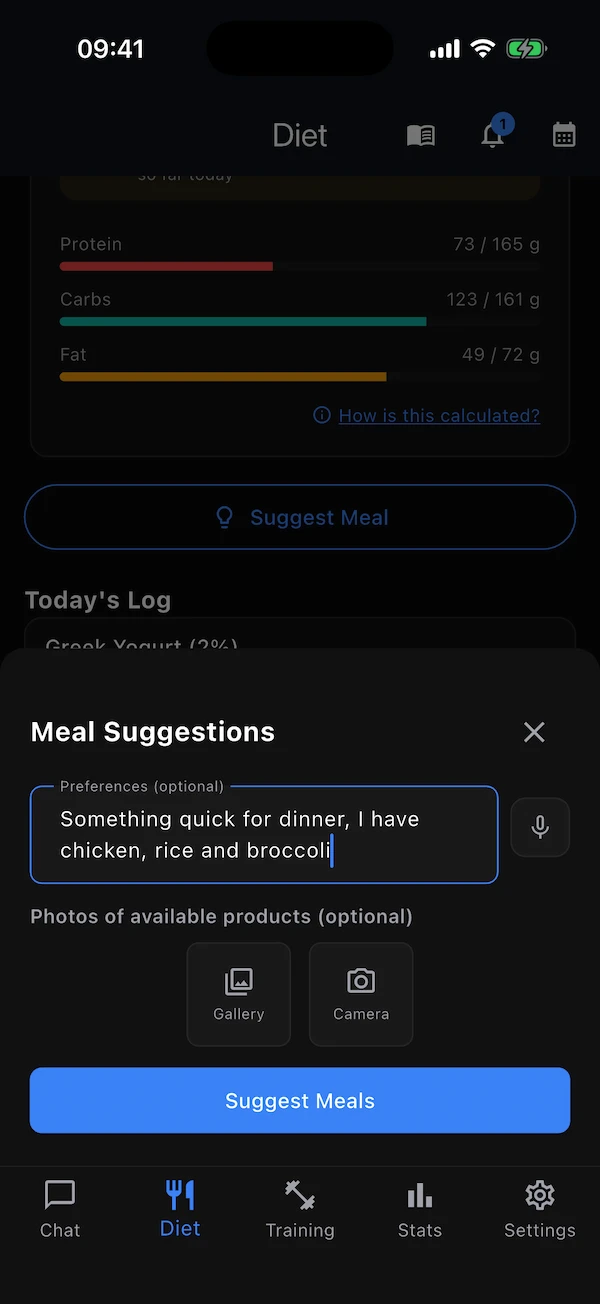
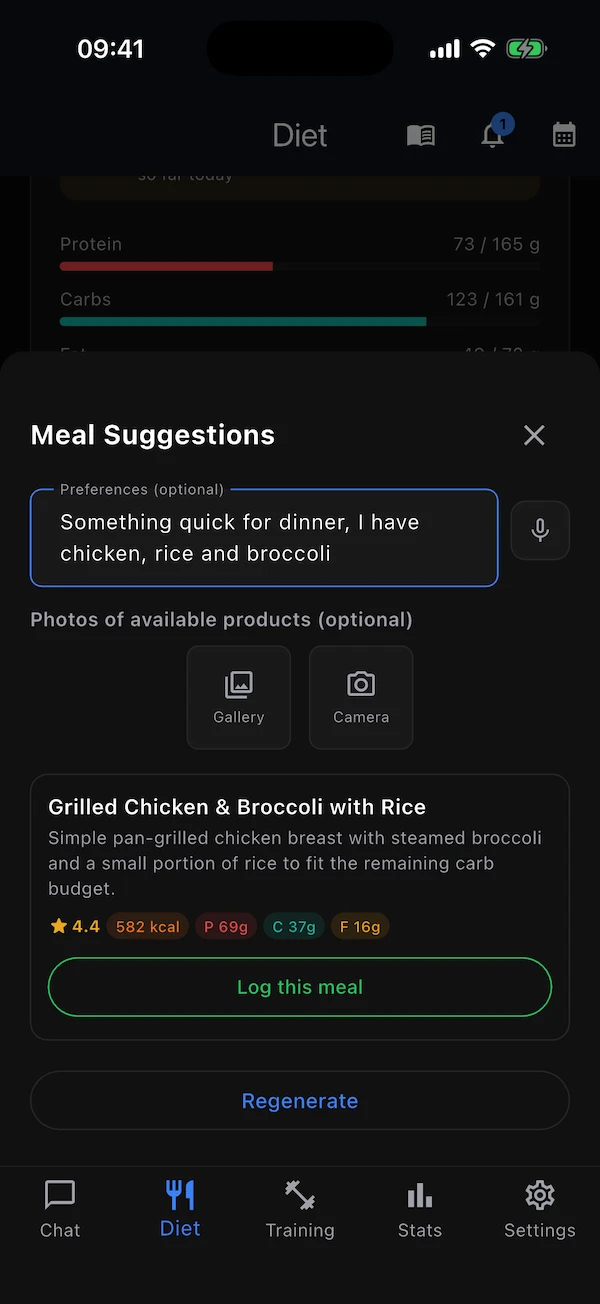
Where to find it:DietSuggest Meal (today only)
Tap Suggest Meal, optionally say what you fancy or what is in the fridge (“I have chicken, rice and broccoli”), dictate it, or photograph the products you have (up to three photos). The coach proposes meals that fit the calories and macros you still have left today — each with its ingredients, numbers and health grade. Like one? Log this meal adds it to your day in one tap; Regenerate asks for another set.
How many you get depends on how specific you are: leave the box empty and you get three — two close to what you usually eat at this time of day and one deliberately new; a few words gives two; a detailed request gives one that follows it closely. The app keeps a weekly profile of your food habits so ideas stay realistic rather than generic.
Your targets: generate, regenerate, or edit by hand
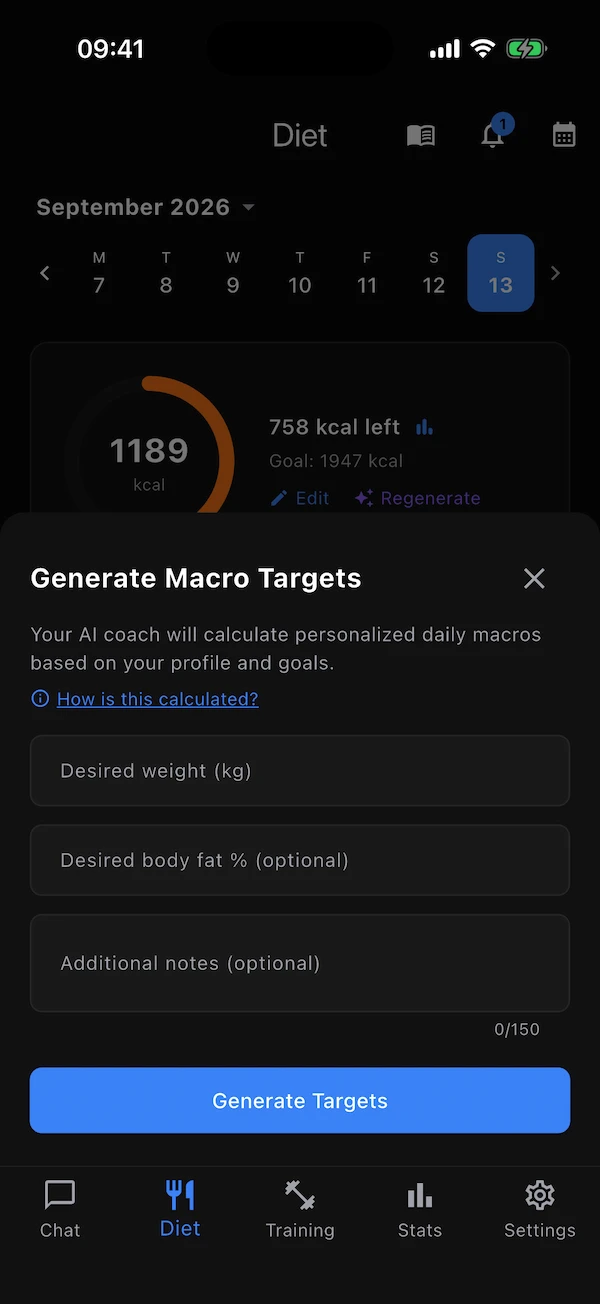
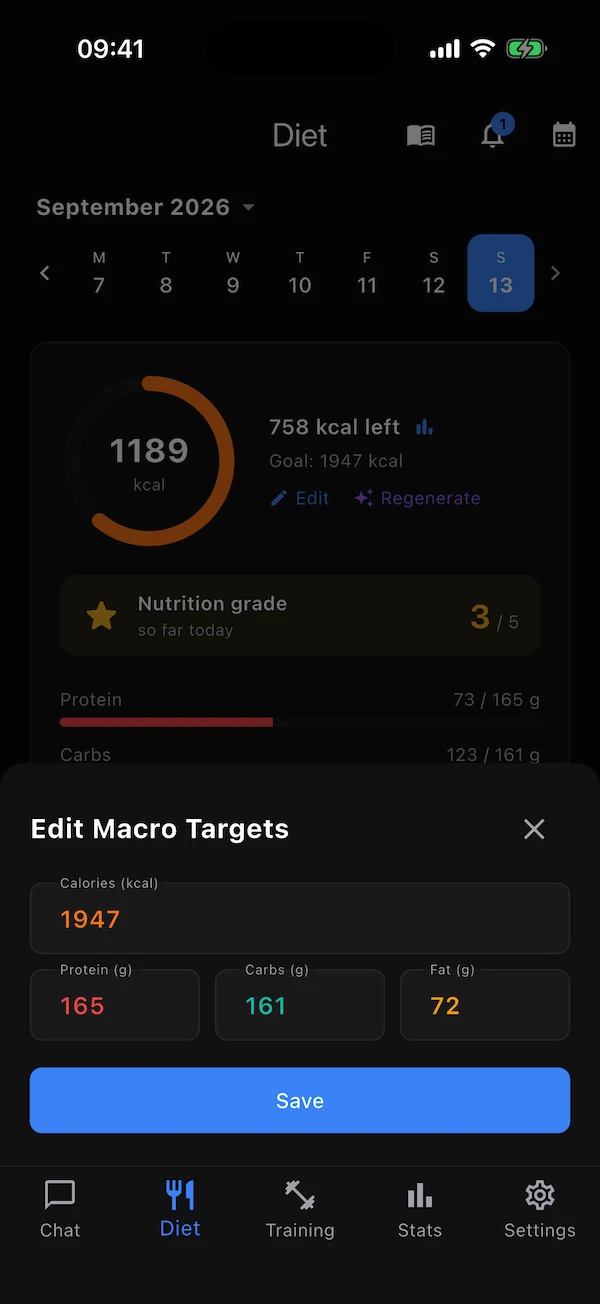
Where to find it:DietGenerate Targets · Regenerate · Edit
The first time, the Diet tab shows a single Generate Targets button. Later the same form sits behind Regenerate on the calorie card. It asks for your desired weight, an optional body-fat goal, and an optional note (“high protein, low carb”), then calculates calories, protein, carbs and fat from your profile.
Edit lets you type the four numbers yourself — useful if a dietitian gave you a plan. Your targets never change on their own: they move only when you regenerate or edit them.
Nutrition graphs
Where to find it:Dietbar-chart icon after “kcal left”
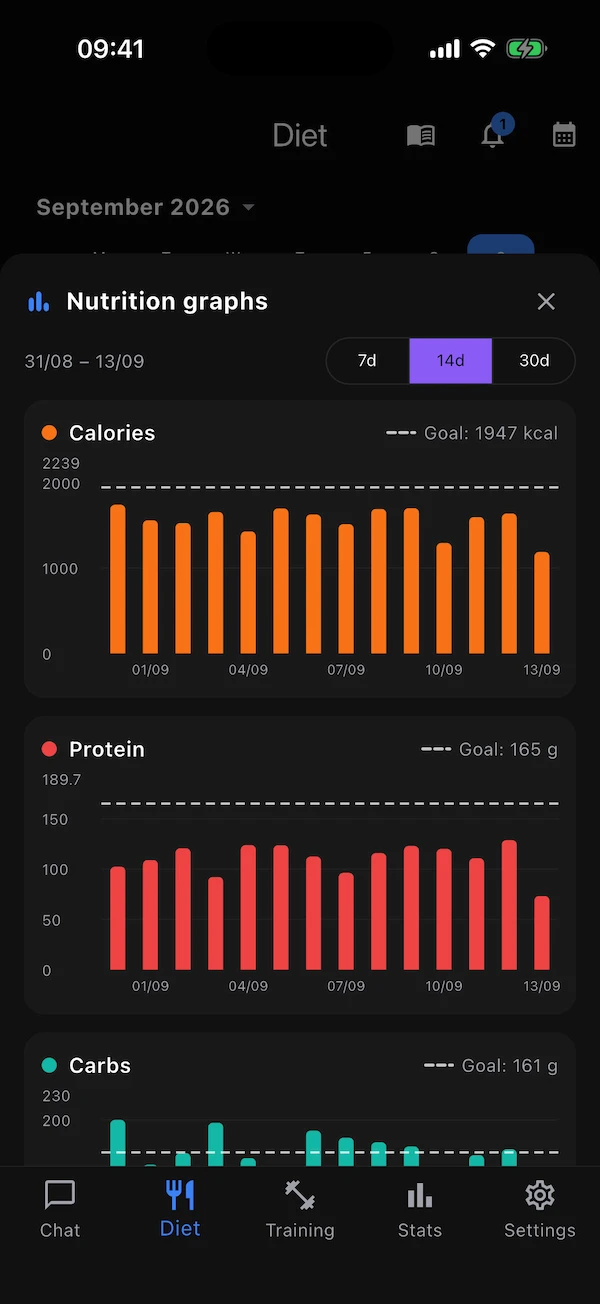
The small bar-chart icon next to the “kcal left” line opens four daily charts — calories, protein, carbs and fat — over the last 7, 14 or 30 days ending on the day you are looking at. One bar per day, a dashed line at your current goal, and a gap for any day you logged nothing. Touch a bar to see the exact value. With water tracking on, a fifth chart —Water, in litres against your daily target — follows the four.
Water tracking
Where to find it:Dietwater drop on the calorie cardor Settings → Features → Water tracking
Water tracking is off until you turn it on, and it lives inside the Diet tab. Tap the drop in the top-right corner of the calorie card (or the switch in Settings) and a short setup asks when you are usually awake, how big your usual glass or bottle is, and on which days you train. The coach then suggests a daily amount from your weight, age, training load and job, splits it into equal glasses across your waking hours, and explains why. Change any number before saving — the suggestion is a starting point, not a prescription.
The suggestion
Your weight sets the baseline, your training and a physical job add to it, and the coach may move the result a little either way for your goals and preferences. Everything is shown before you accept it, and Re-suggest on the water screen asks again later.
Reminders that work with the app closed
At each intake time your phone shows a notification with two buttons — Drink and Postpone. Answering it does not open the app: Drink logs the glass and spaces the rest of the day out evenly; Postpone moves the next reminder by your postpone time and re-spaces the remaining glasses after it. Reminders never run past your bedtime, and each day starts a fresh count.
Logging by hand
Drank without a reminder? Open the water screen and tap + glass or enter any amount up to 3 litres. Mistakes can be undone from the day's list. Water you mention while logging a meal — “a bottle of water with lunch” — counts too, and the manual meal sheet has its own Water (ml) field. Water that came from a meal is removed by editing or deleting that meal.
Water drop
Top-right of the calorie card: opens the water screen, or the setup flow the first time.
Reminders
On the water screen: reminders on or off, sound, vibration, how long Postpone waits (5–60 minutes) and, on Android, exact timing.
History
The last 7, 14 or 30 days on the water screen, and the fifth chart in the nutrition graphs.
- The blue ring
- Inside the calorie ring, filling as you drink; the litres are shown under the calorie number. The calorie card looks exactly as before for anyone who has not turned water on.
- Sound & vibration
- Android: both can be set on the water screen. iPhone: the sound switch applies; vibration follows your phone's own notification settings.
- Exact timing (Android)
- Off by default: Android may deliver a reminder a few minutes late to save battery. Turn it on and grant the permission Android asks for if you want reminders on the minute.
- Offline
- Every Drink, Postpone and manual glass is saved on the phone first and sent when you are back online, so nothing is lost without a connection.
- Turning it off
- Settings → Features → Water tracking, or turn Diet off. Reminders stop, your plan and history are kept, and turning it back on restores them.
Training tab
A plan that grows with you
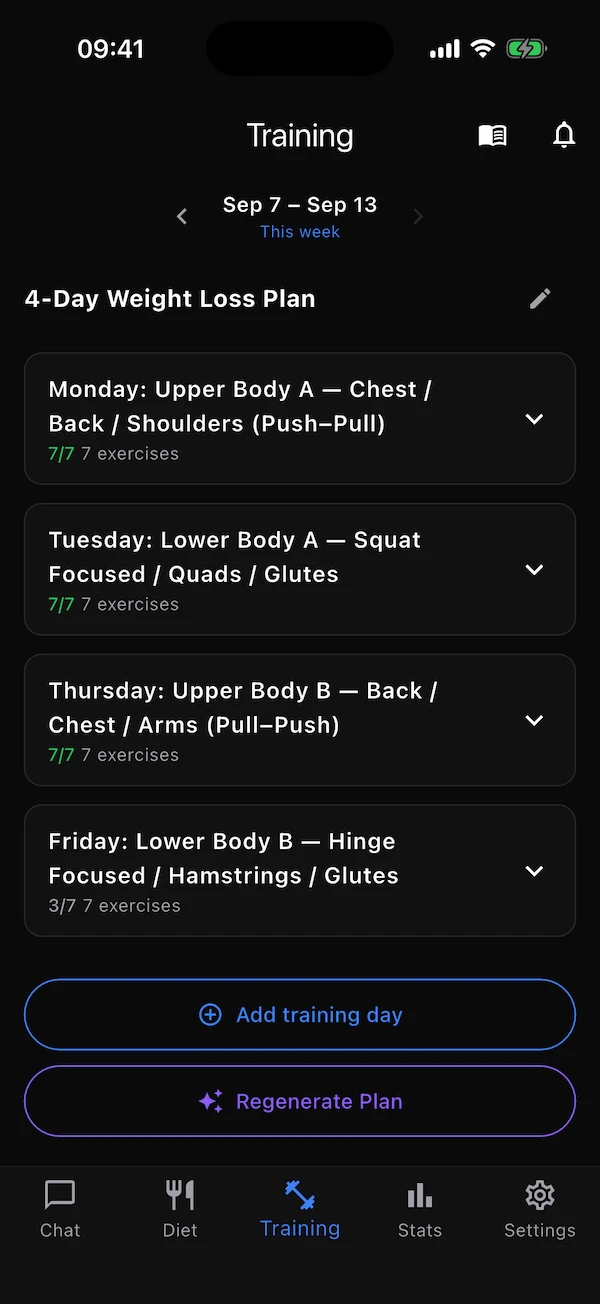
The Training tab holds your weekly plan: one card per training day, each listing its exercises with sets, reps and a suggested weight. You log what you actually did, set by set, and next week starts from there.
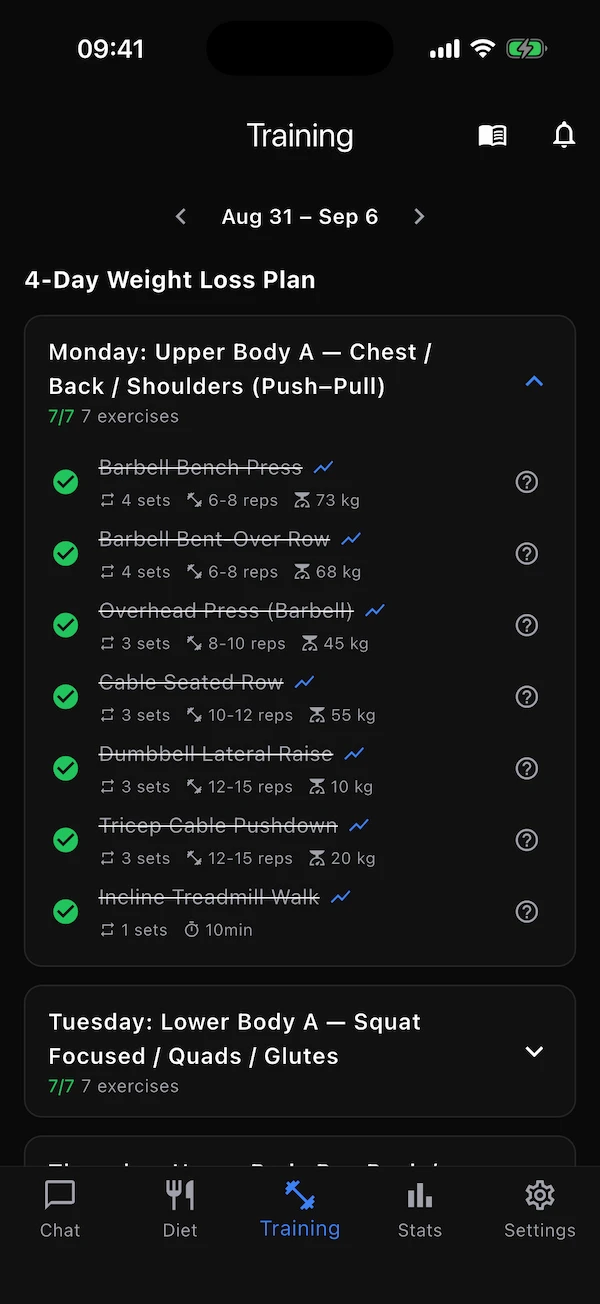
Moving between weeks
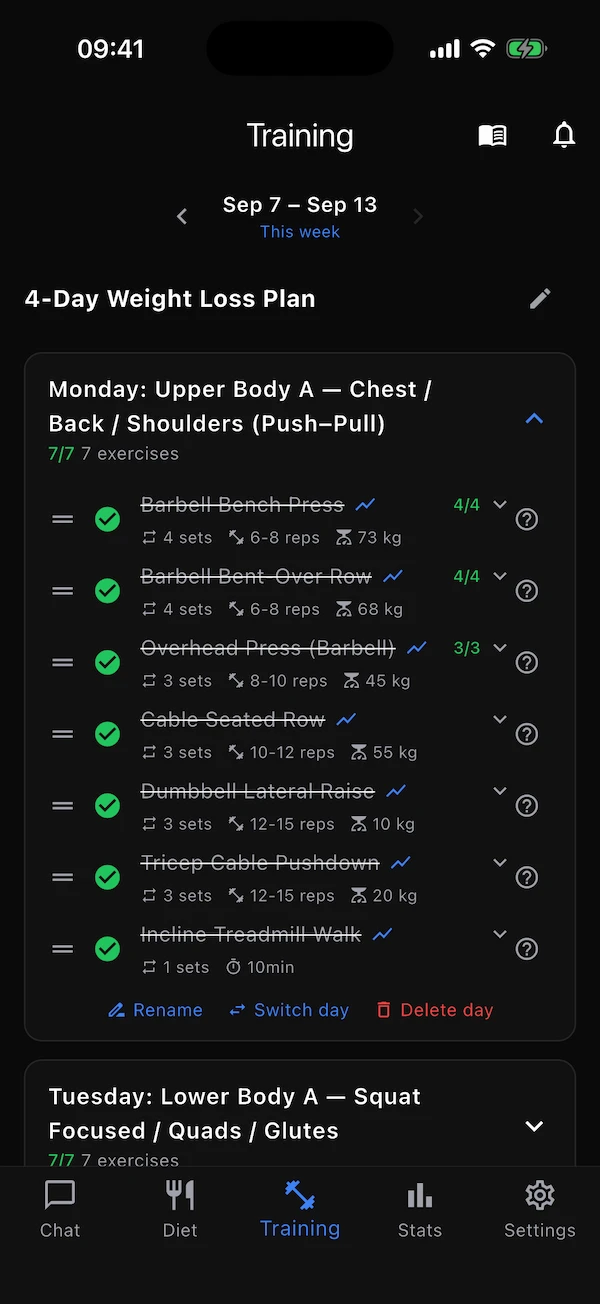
The strip at the top shows the week's dates with arrows on both sides; This week is the current one. You can look back up to 90 days but not forward. Past weeks are frozen — checkboxes and action icons disappear and the text goes grey — but the ? and graph icons still work, because history is always worth a look. Under the strip is your plan's name; the pencil next to it renames it.
Anatomy of an exercise row
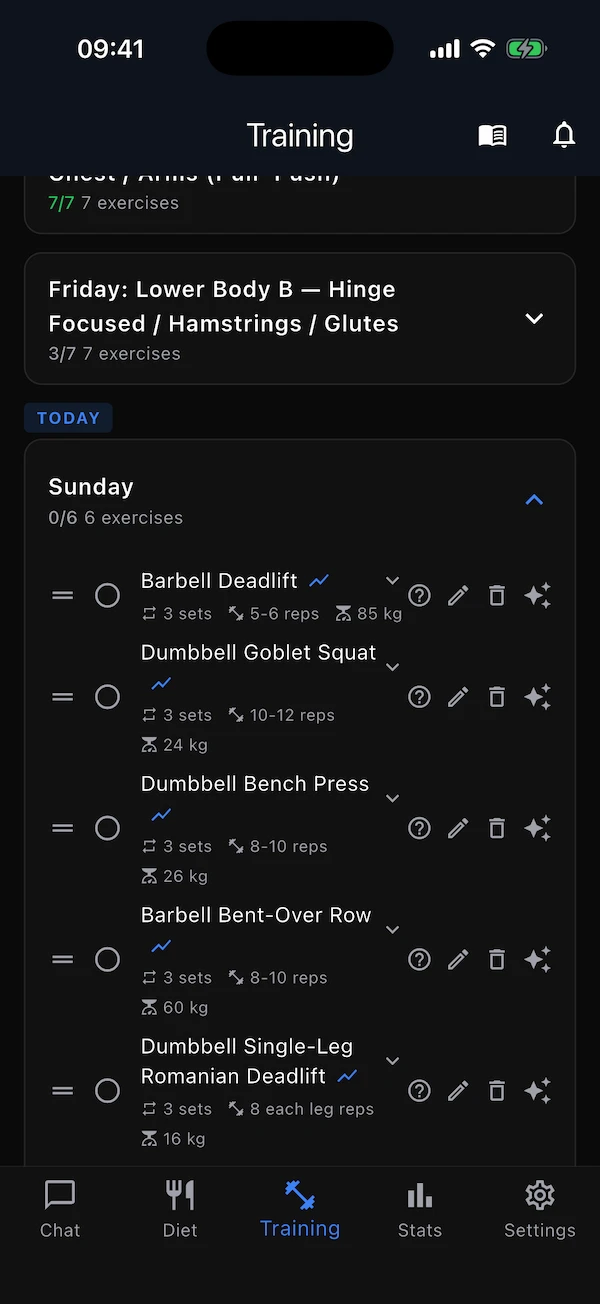
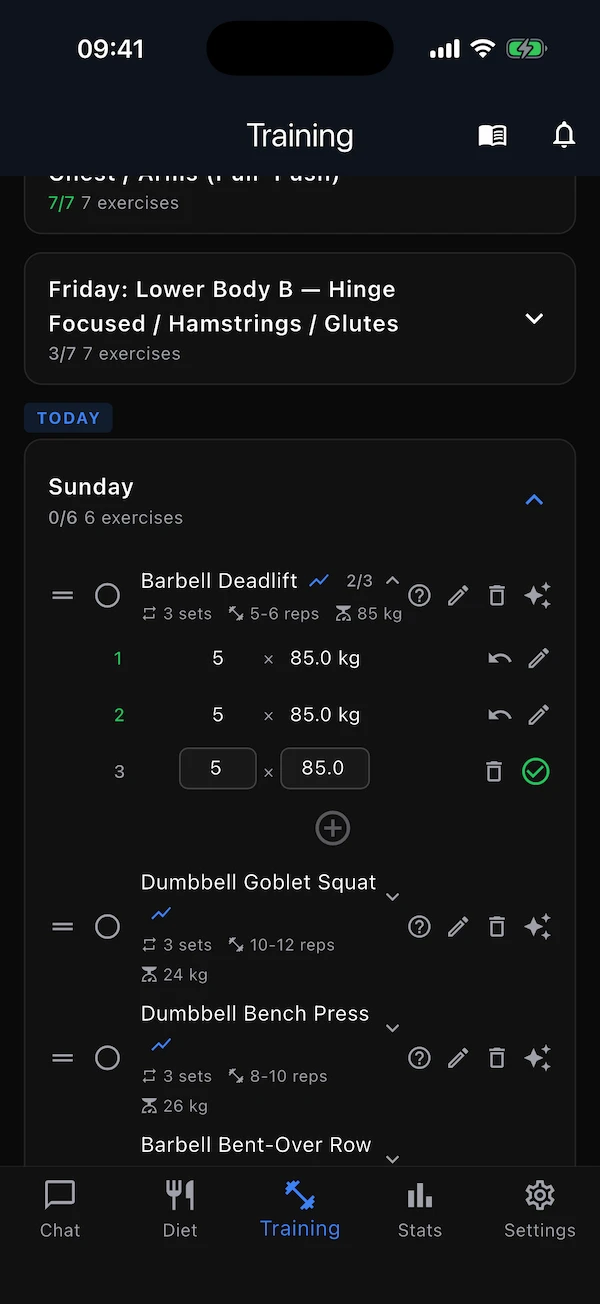
Every exercise shows its name, a chip for each planned number, and a row of small icons. Here is what each one does.
Drag handle
Press and hold, then drag the exercise up or down to reorder the session.
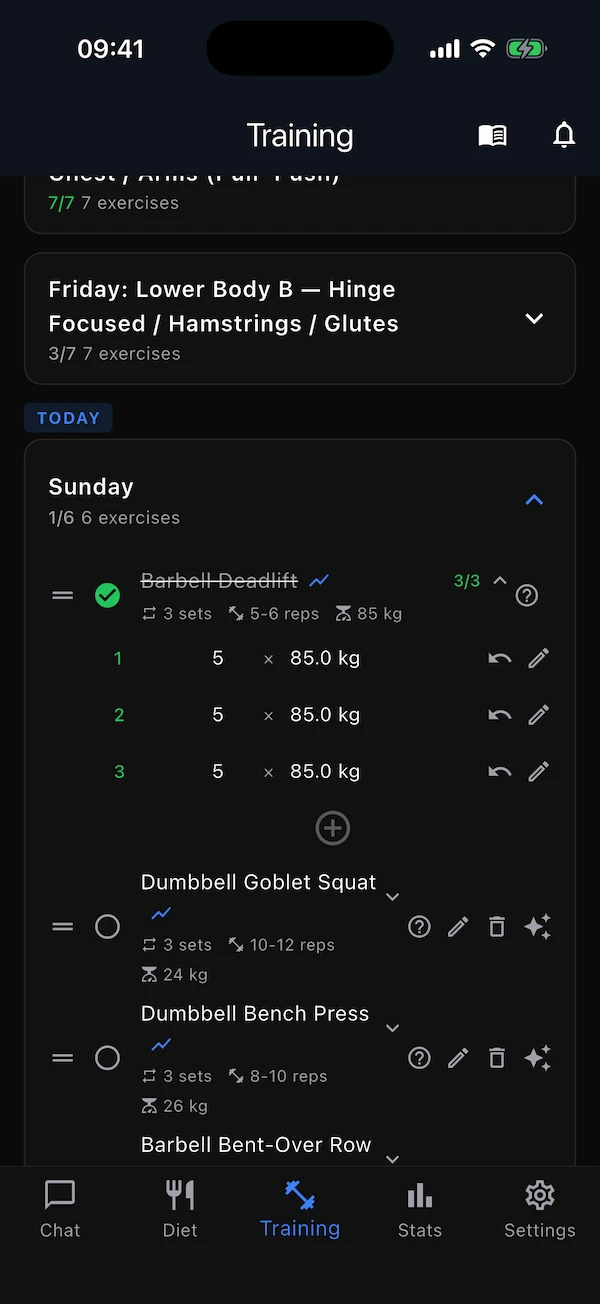
Done circle
Tap to mark the whole exercise done (or undo it). Fills green automatically once every set is logged.
Graph icon (after the name)
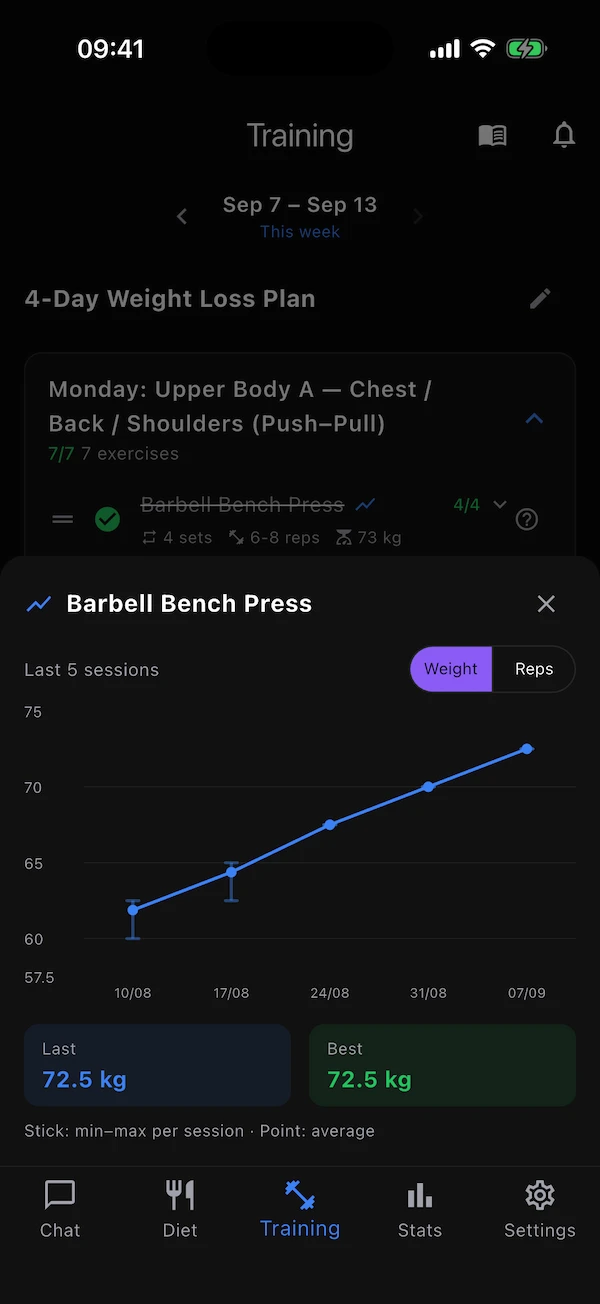
Opens this exercise's performance graph — your last 30 sessions of weight, reps, speed or duration.
Sets · Reps · Weight chips
The plan for this exercise. Weight reads “body” for bodyweight moves; cardio shows a duration (and, once logged, an average speed) instead of reps and weight.
Chevron / the name
Tap to expand the exercise into its set rows (see Logging your sets).
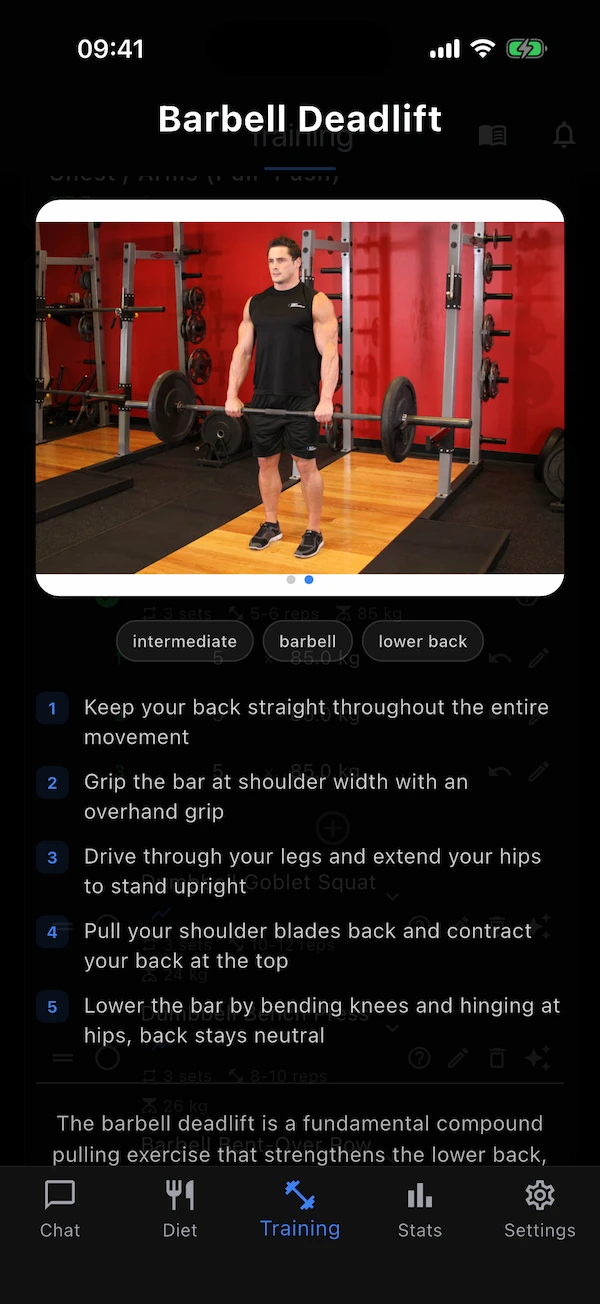
? — Exercise info
A guide to the movement: photos, a front-and-back body diagram with the muscles worked highlighted (red for primary, amber for secondary), level, equipment, the key safety points and a description. From the exercise library when the exercise is known; written by the AI otherwise — either way the diagram shows which muscles the movement trains.
Edit
Change the name, sets, reps, weight, duration or notes.
Delete
Remove the exercise from this day (asks first).
Swap (sparkle)
Ask the AI for an alternative. Only on today and future days — you can't swap an exercise you have already done.
Logging your sets
Tap the exercise name to expand it. Each planned set appears as a row pre-filled with the planned reps and weight. Do the set, correct the numbers if they differed, and tap the green tick. When the last set is ticked the exercise marks itself done and the day's counter moves on.
- Green tick
- Confirms the set with the values shown.
- Logged set
- Shows what you did (“5 × 85.0 kg”) with an undo arrow to un-log it and a pen to change it.
- Bin on an unlogged set
- Removes that set from the plan (a set count of 1 is the minimum).
- + under the last set
- Adds another set and logs it with the previous set's values, so a bonus set is one tap.
- Cardio rows
- Time-based exercises log minutes and km/h instead of reps and kg; the chips then show the total duration and average speed.
- Undoing
- Un-logging a set of a completed exercise takes the exercise back to “not done”.
Changing an exercise
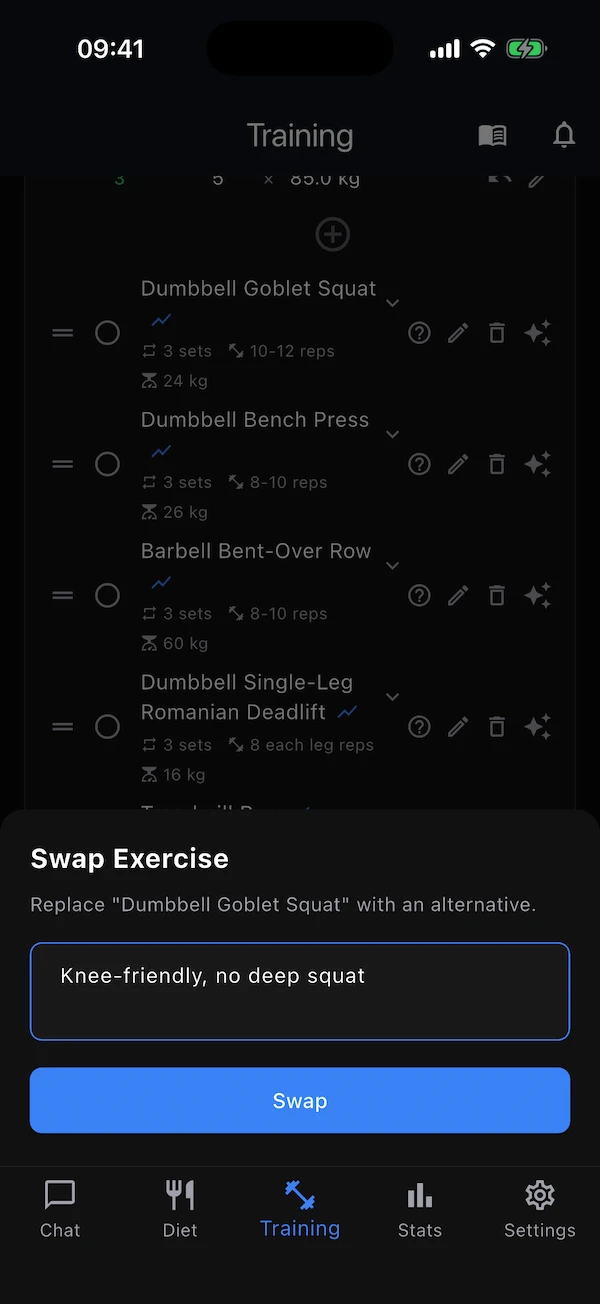
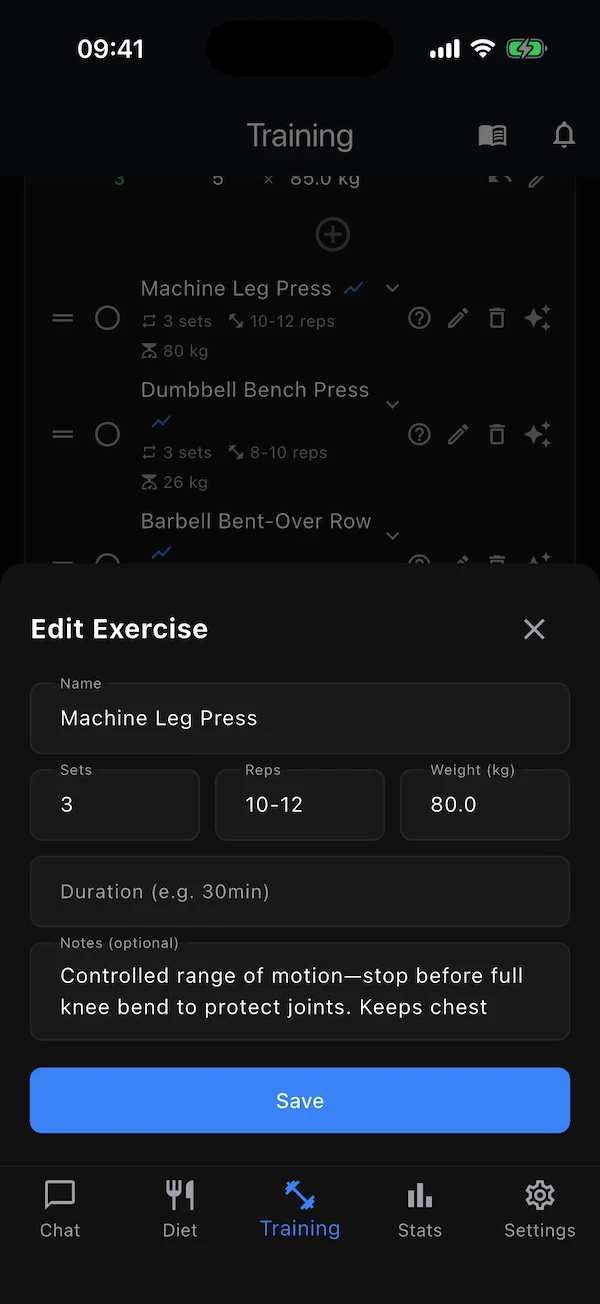
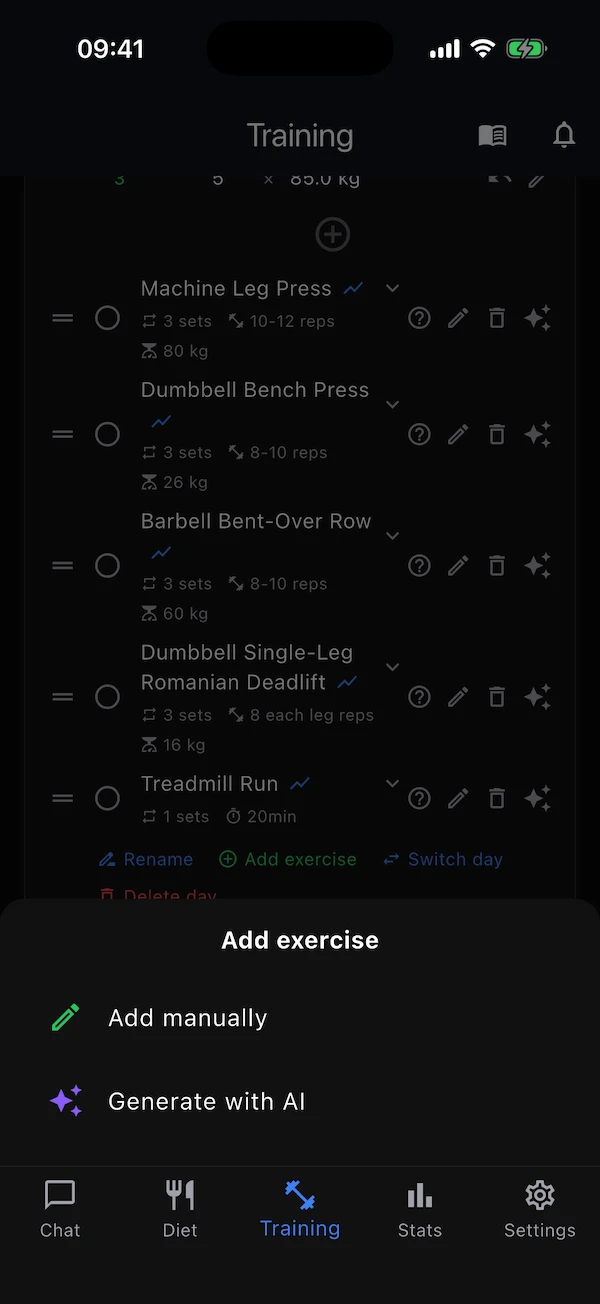
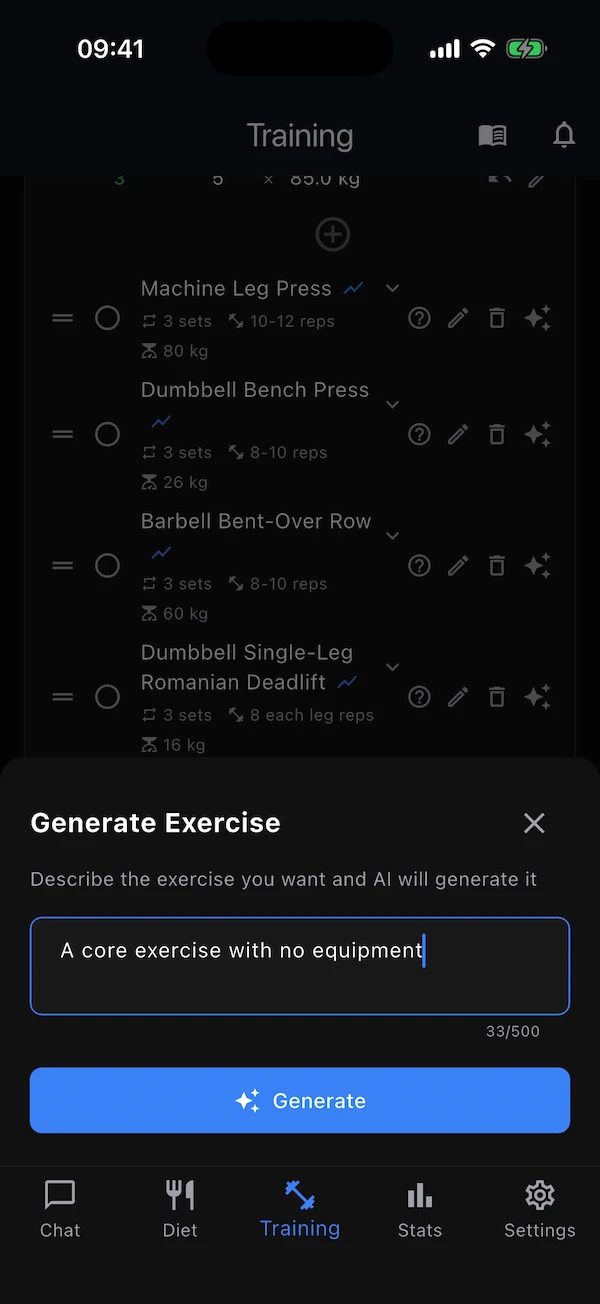
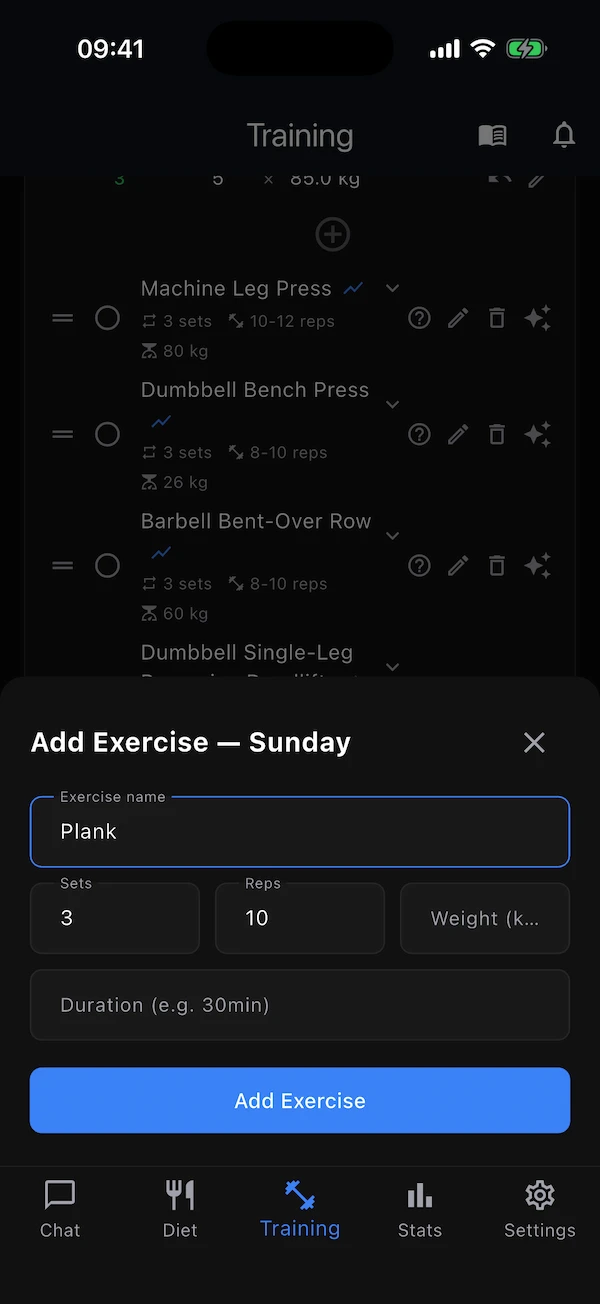
Swap opens a small sheet where you can add a preference — “no barbell”, “knee-friendly”, “dumbbells only” — or leave it blank for any sensible alternative; the replacement keeps the slot and its sets. Edit changes the numbers by hand. Add exercise at the bottom of a day offers two routes: Add manually (type the name, sets, reps, weight, duration) or Generate with AI (describe what you want — “a core exercise with no equipment”).
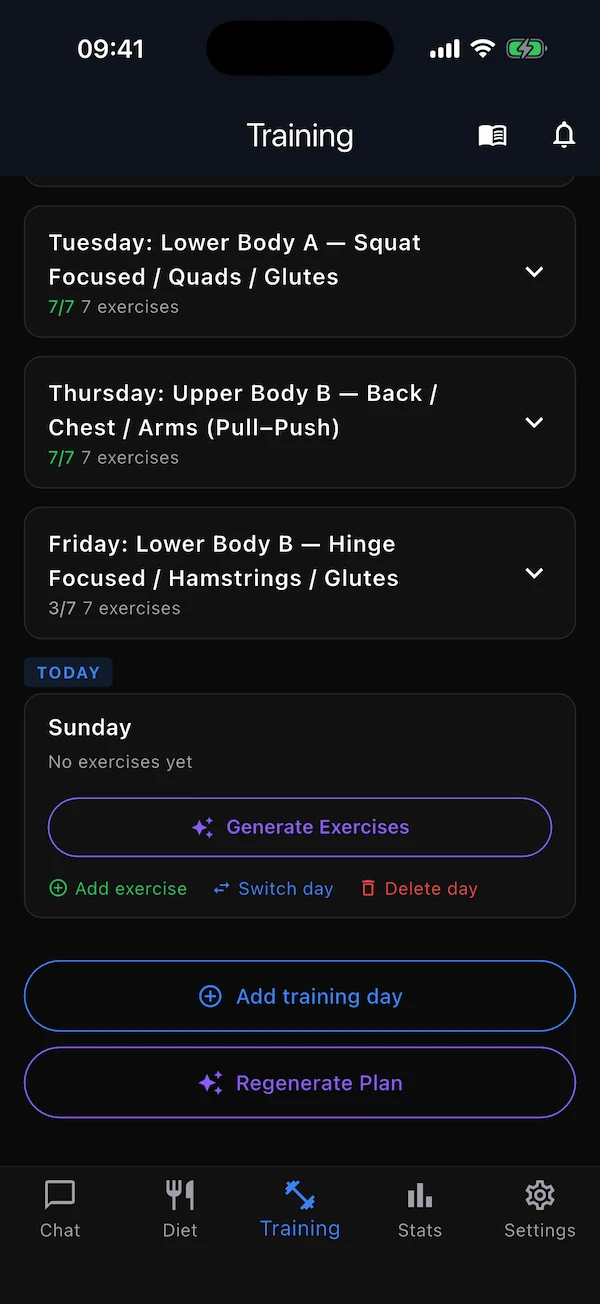
Changing a day
The row of links under a day's exercises manages the day itself.
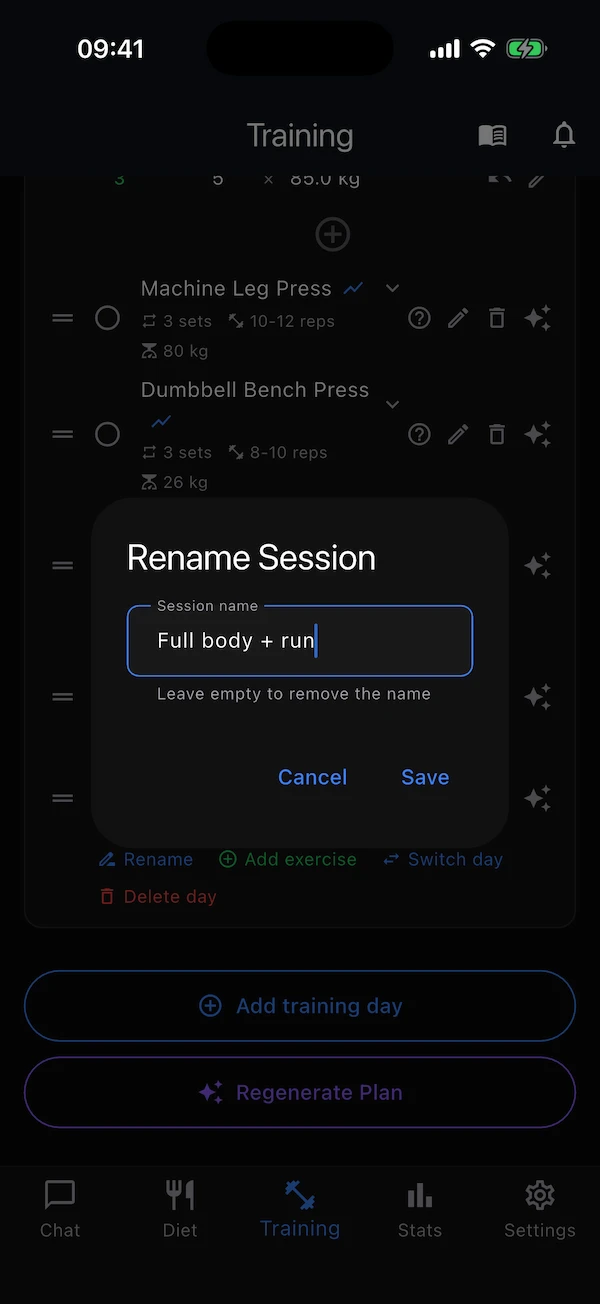
Rename
Give the session a name (“Full body + run”). Clear the field and the button turns into Delete — the card then shows just the weekday.
Add exercise
Manual or AI, as above. Today and future days only.
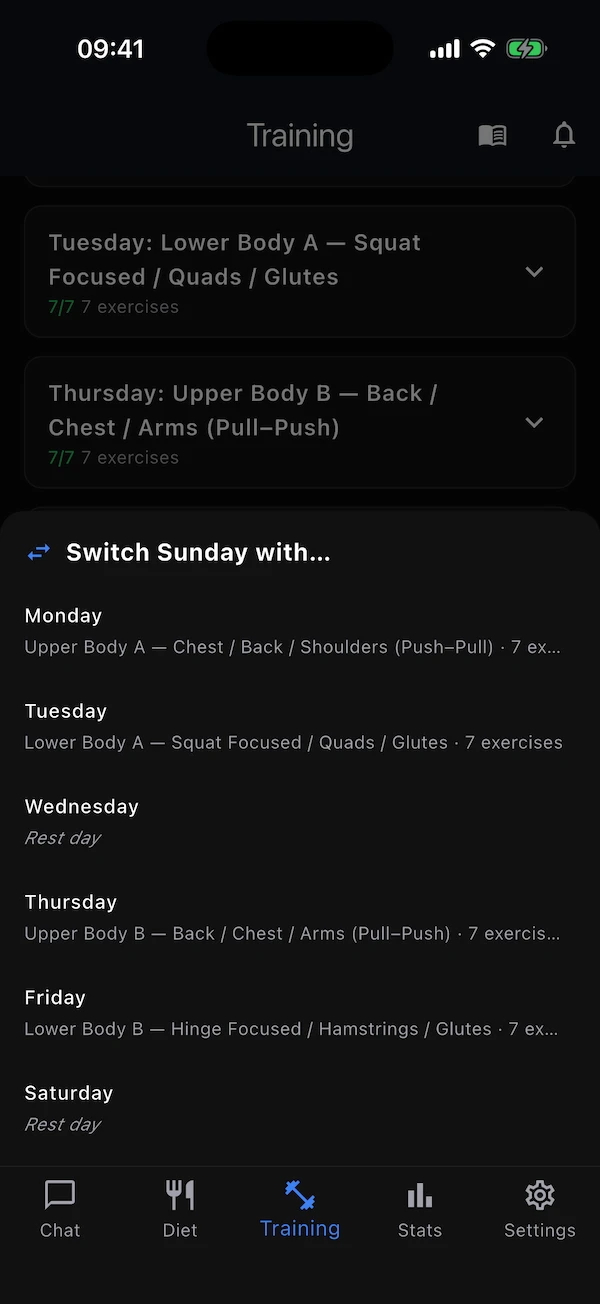
Switch day
Exchange this day with another weekday — even a rest day. Exercises, ticks and logged sets move with it.
Delete day
Remove the day and all its exercises from this week (asks first).
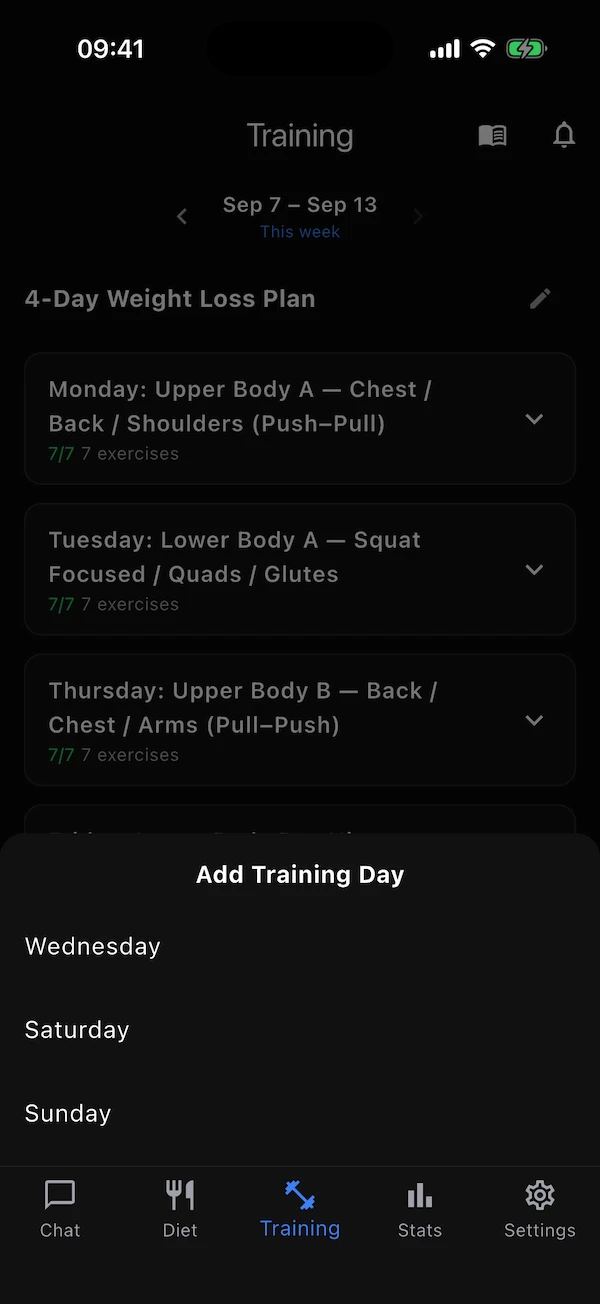
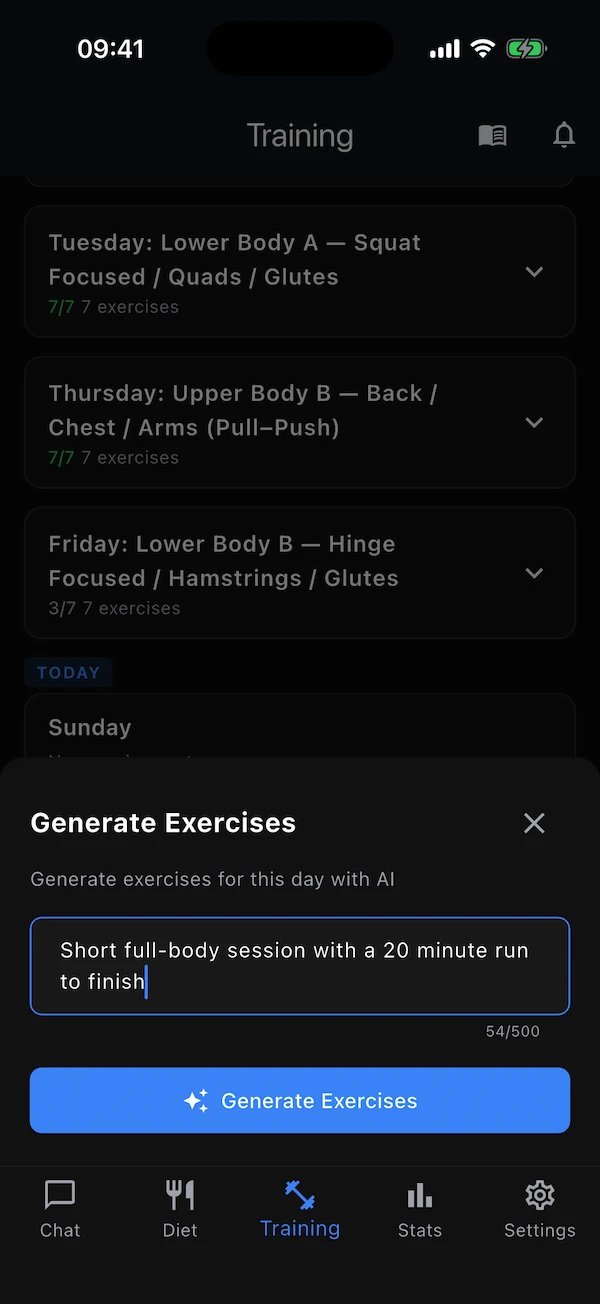
Below the last card, Add training day adds a weekday to this week. It appears empty, with a Generate Exercises button — add an optional focus such as “short full-body session with a run to finish” and the AI fills the day. Regenerate Plan rebuilds the whole week.
Generating or regenerating the whole plan
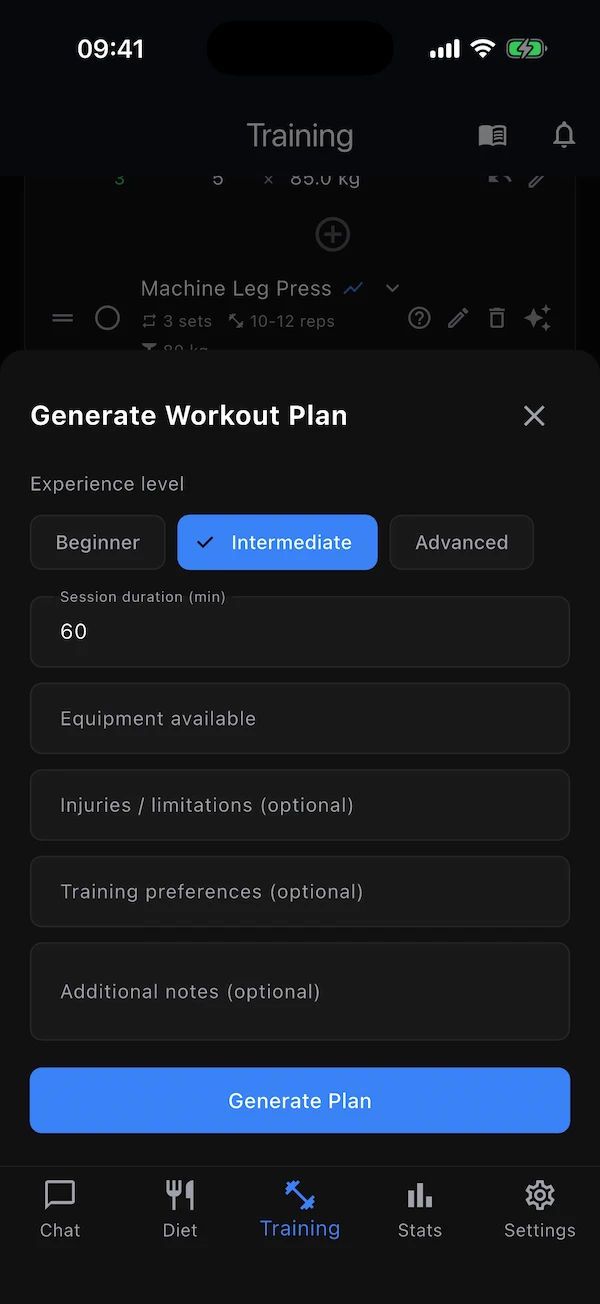
Where to find it:TrainingGenerate Plan · Regenerate Plan
The questionnaire asks your experience level, session length, the equipment you have, injuries or limitations, preferences (“compound movements, no machines”) and any notes. The coach then writes a full week for the days you chose in your profile.
Regenerating mid-week keeps the days you have already trained and only rewrites today and the days ahead, so nothing you did is lost.
Stats tab
See the trend, not just today
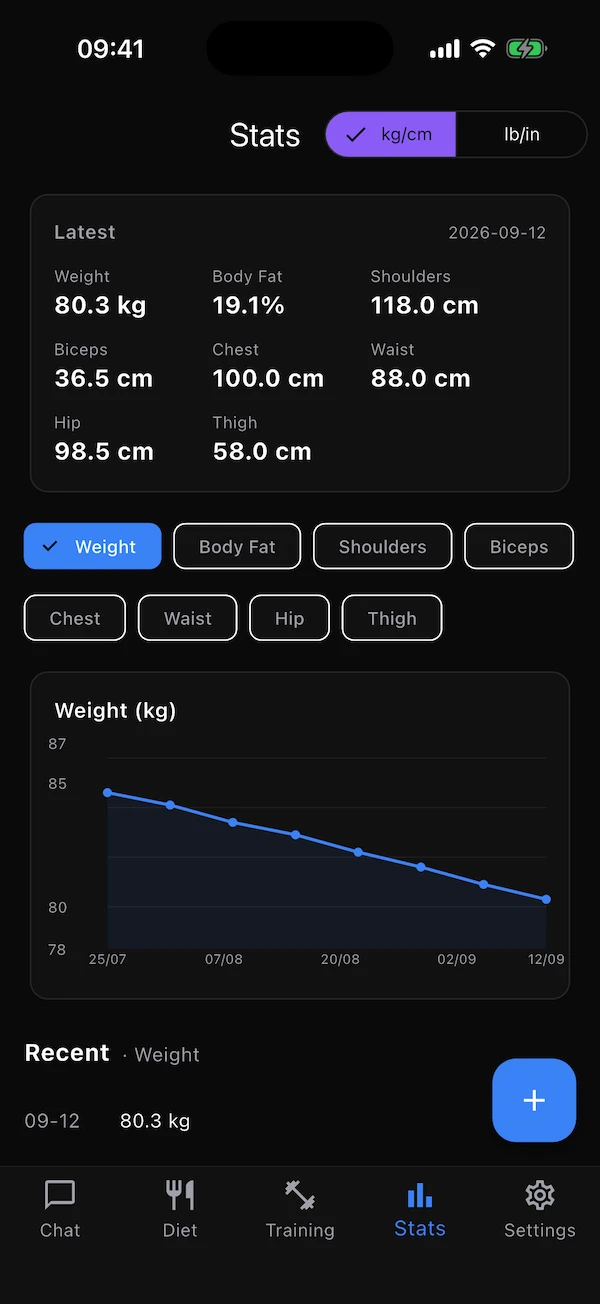
The Stats tab records your weight and body measurements and shows how they change over weeks and months. It is also where you find every exercise's performance history in one place.
- kg/cm · lb/in
- The toggle in the top bar switches every number and field between metric and imperial. Values are stored in metric, so switching never loses precision.
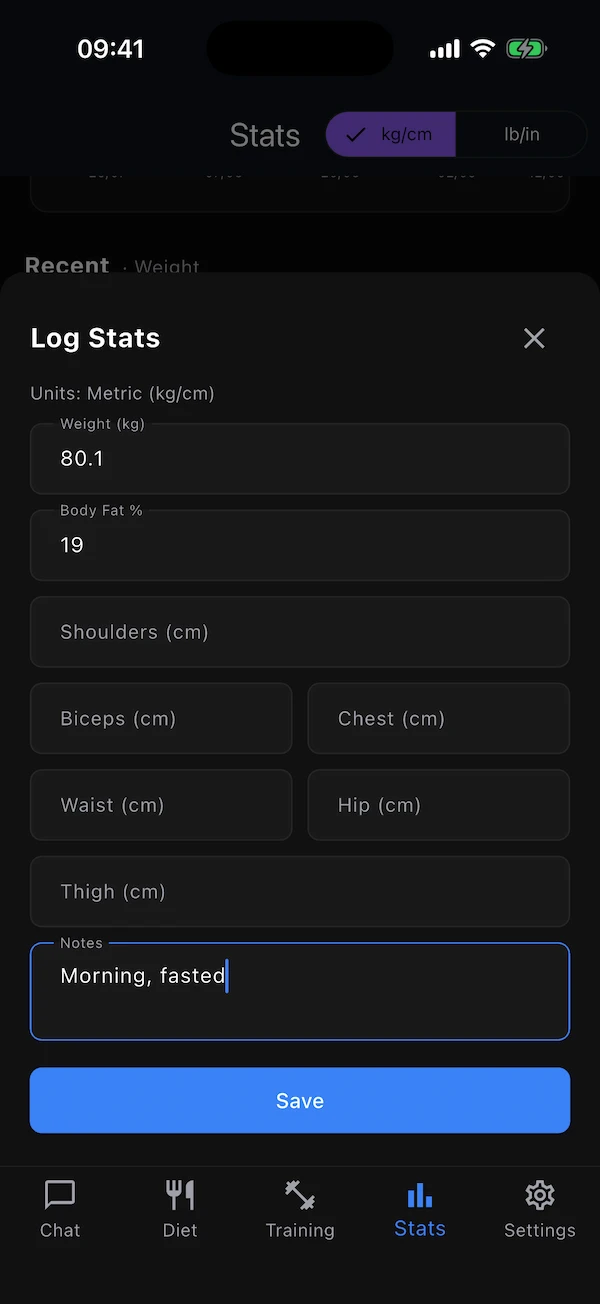
- + button
- Log an entry: weight, body fat %, shoulders, biceps, chest, waist, hip, thigh and a note (“morning, fasted”). Fill in whatever you measured — one field is enough. One entry per day: logging again the same day updates it.
- Latest
- A grid of the most recent value for each stat you have ever logged, with the date.
- Chart chips
- Tap a stat to chart it. A chart needs at least two entries of that stat.
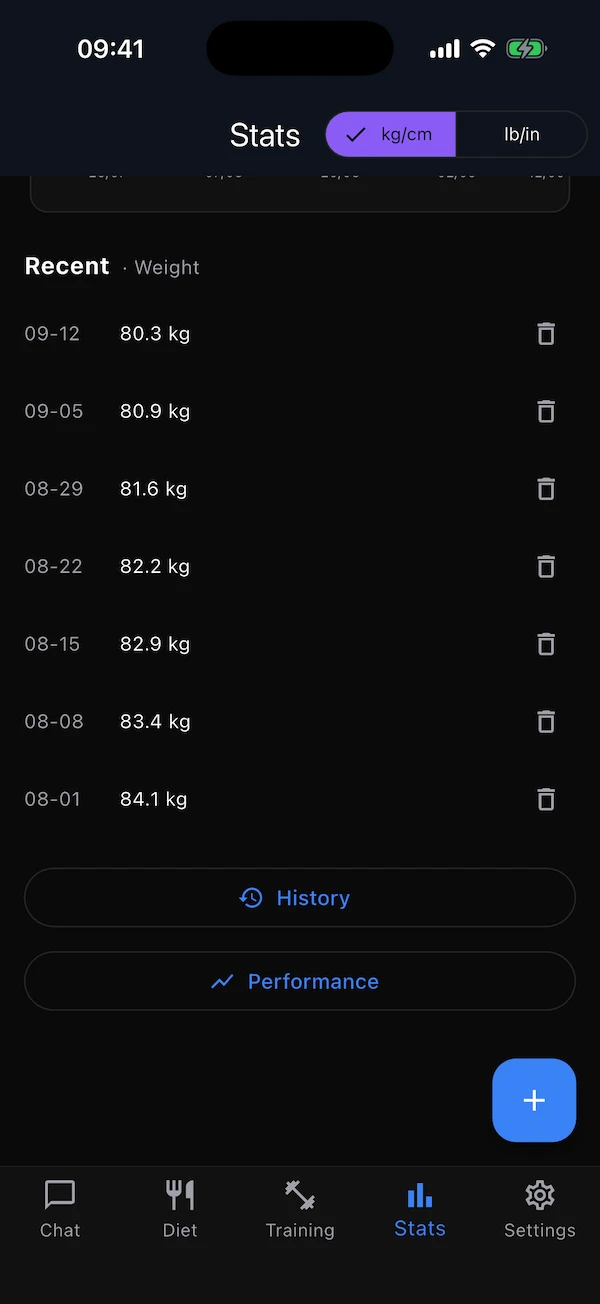
- Recent
- The last seven entries of the selected stat. Tap one to edit it (all fields), or the bin to delete it.
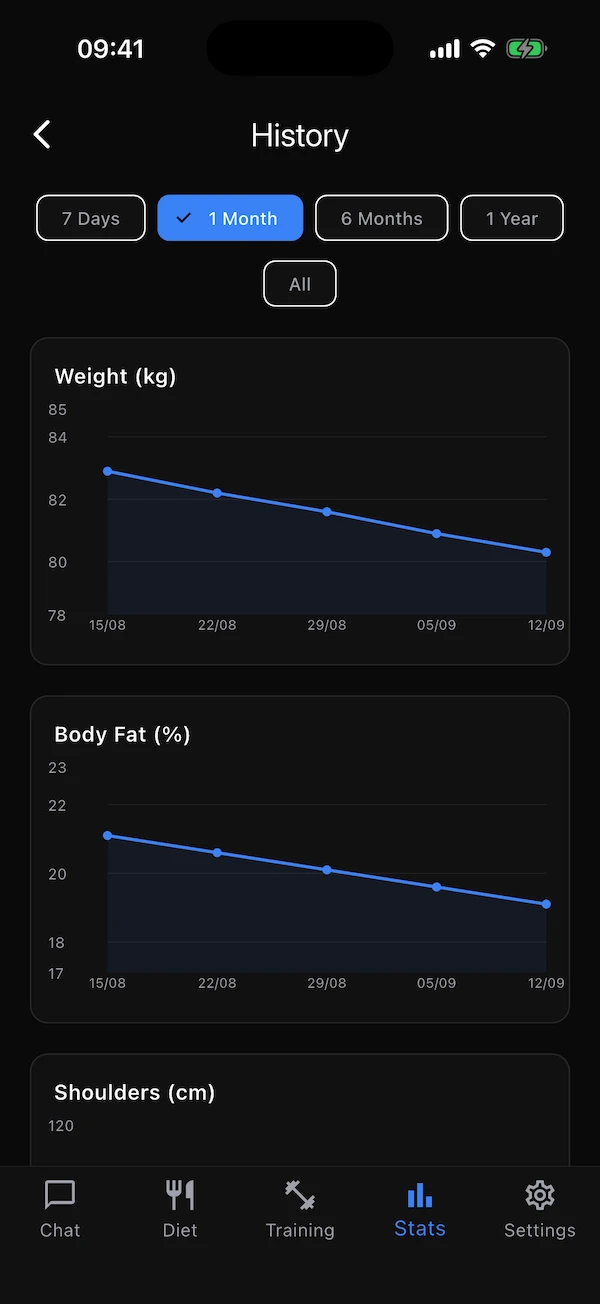
- History
- One chart per stat with 7 days / 1 month / 6 months / 1 year / All filters.
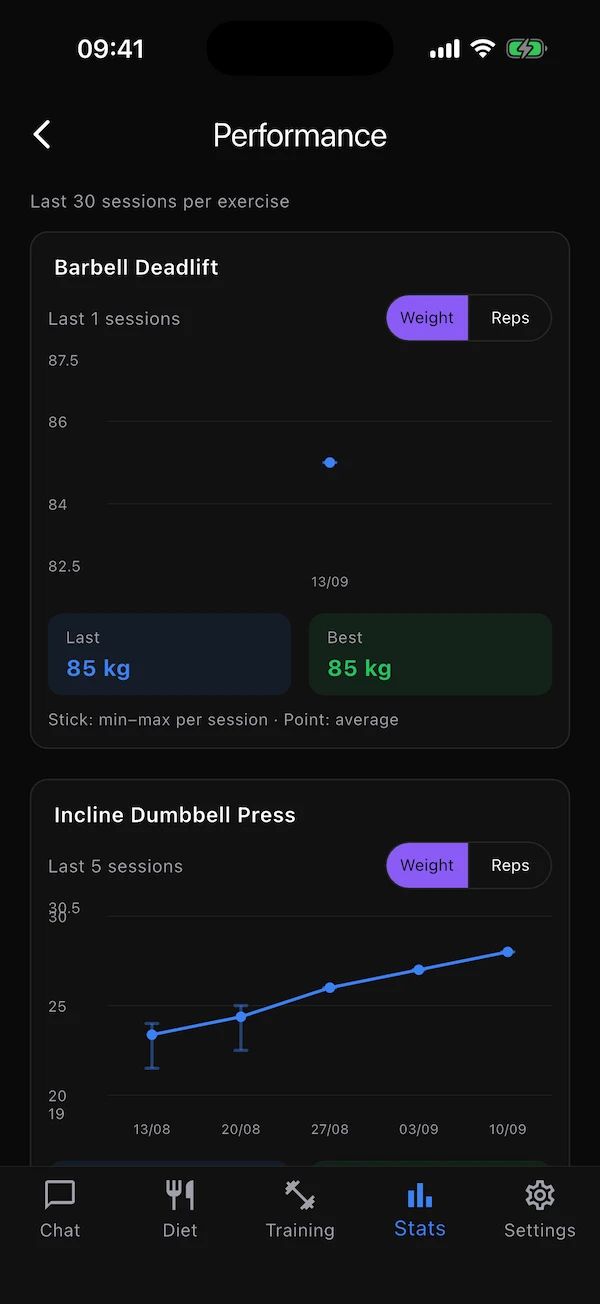
- Performance
- For every exercise you have logged sets for, most recently trained first: a stick from the lowest to the highest value of each session, a point at the average, and the last and best values underneath. Switch between weight, reps, speed and duration where you have them.
Chat tab
Ask anything, in your own words
The Chat tab is a normal conversation with your coach. Ask it to explain a recommendation, suggest a dinner, adjust your calories, or tell you what to do with only 30 minutes today. Answers stream in as they are written and can include headings, lists and tables.
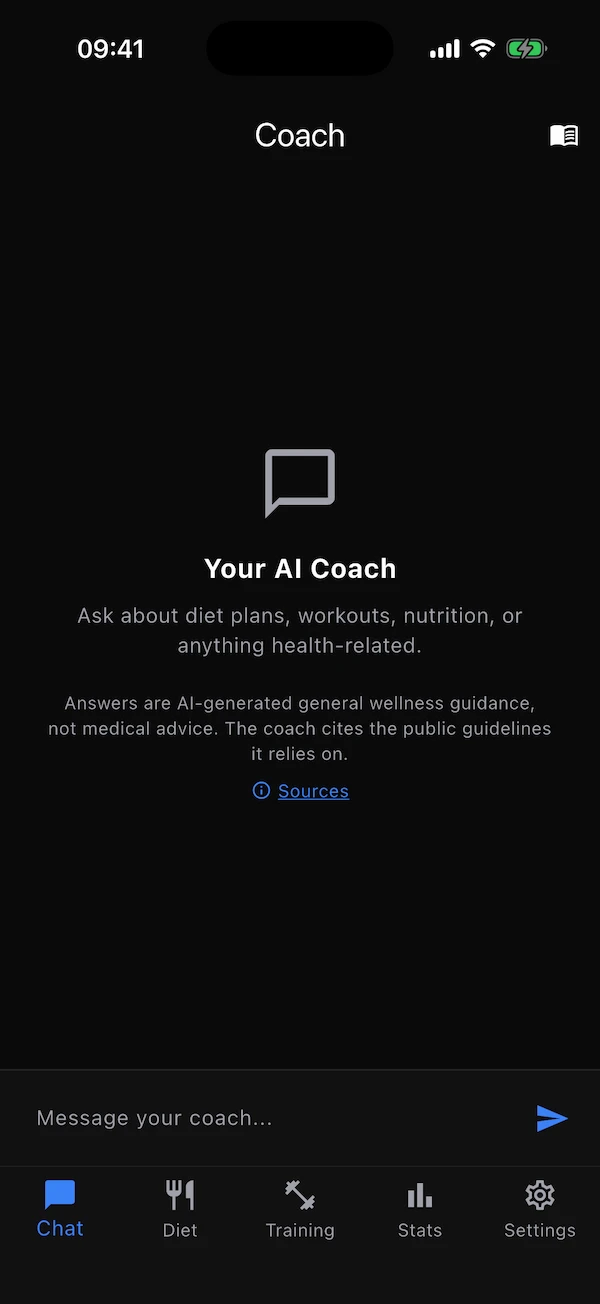
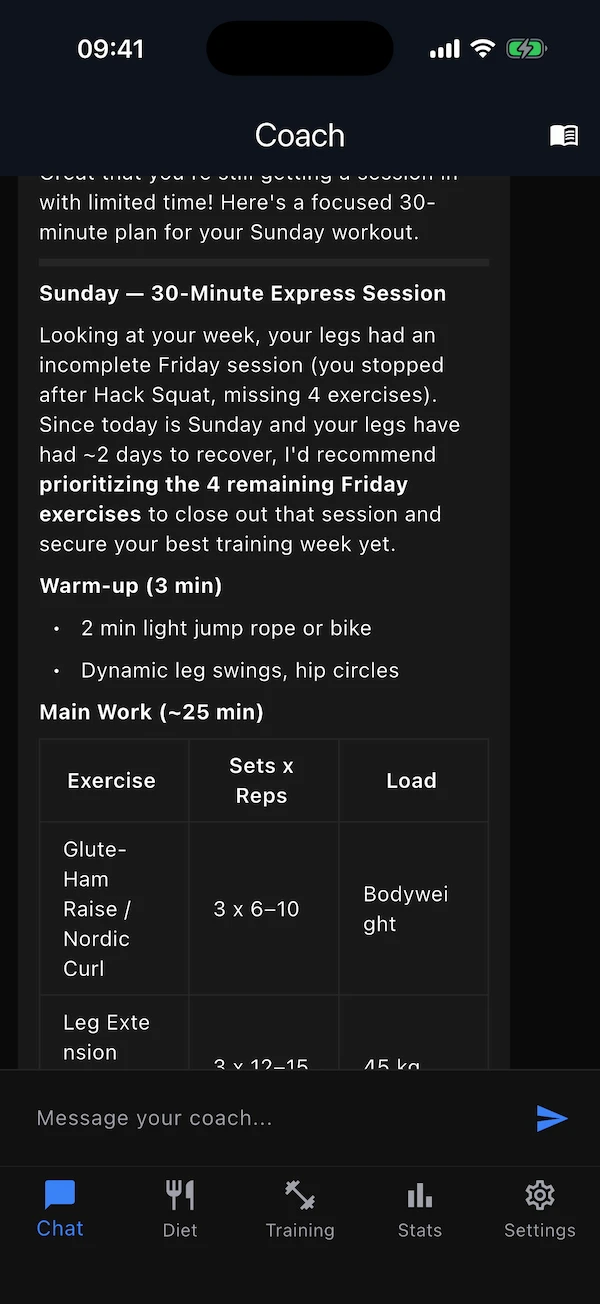
The coach already knows your profile, your recent meals and your training, so you never have to repeat yourself: “why is my carbs target so high?” or “give me a high-protein breakfast” is enough. It bases general advice on public health guidelines and names them; the Sources link and the book icon in the top bar list them.
Notifications
Helpful nudges, never spam
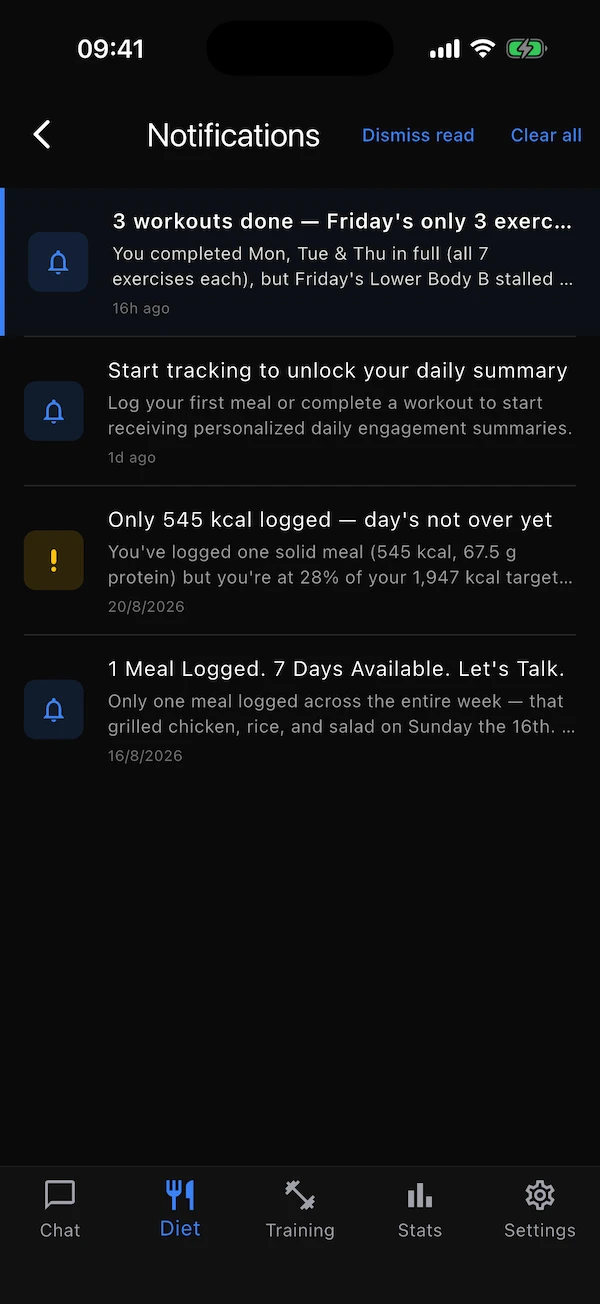
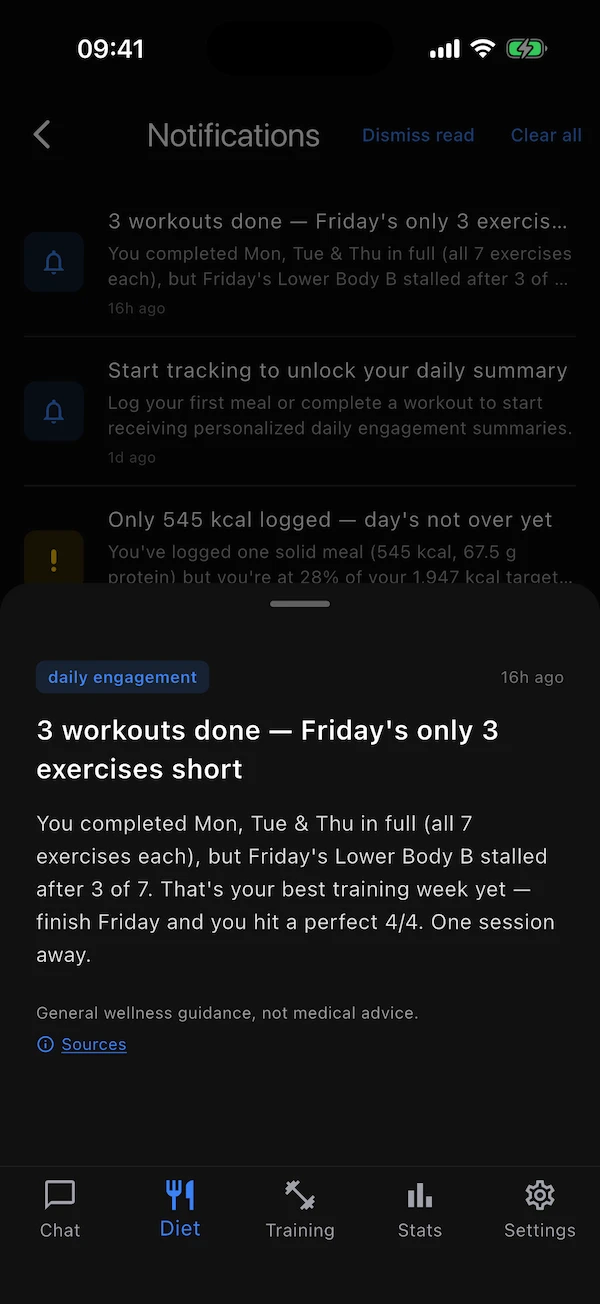
The bell in the top bar of the Diet and Training tabs shows how many unread notifications you have. Notifications live inside the app — Regimo does not send push notifications to your lock screen. The one exception is the reminder you set up yourself: water reminders are scheduled by your phone and appear as normal phone notifications, with their own Drink and Postpone buttons.
- Daily check-in
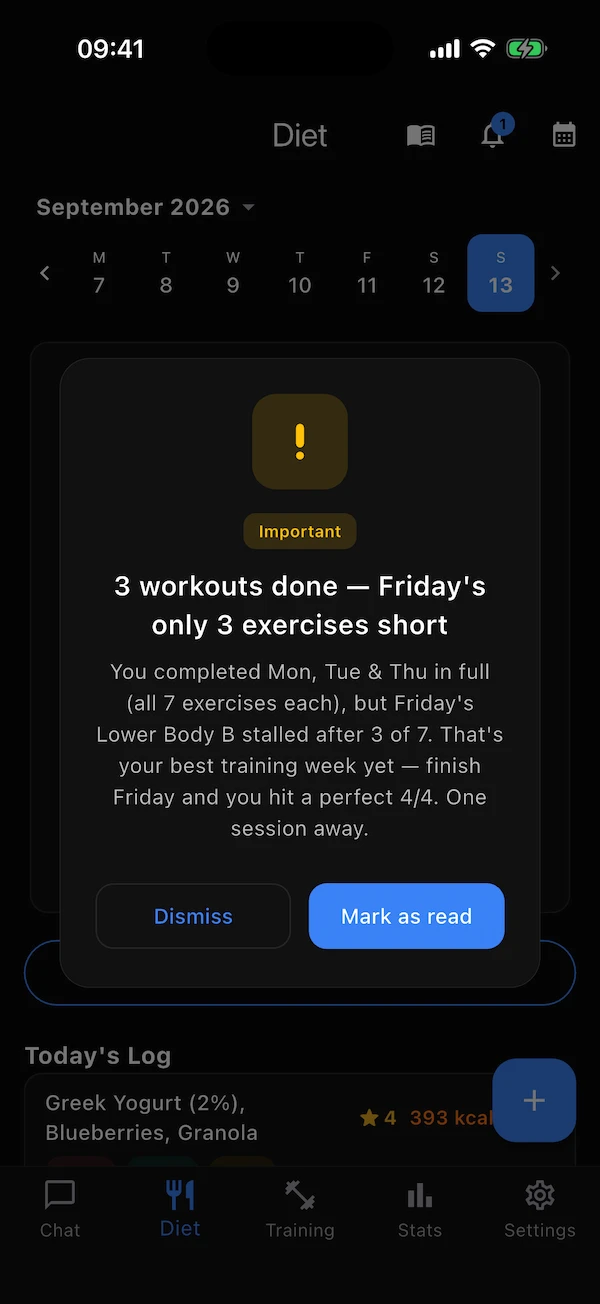
- Written overnight from your last seven days. It only arrives when there is something worth saying — a streak, a personal best, a comeback, a near-miss — so most ordinary days stay quiet. After three days without a logged meal it always checks in, and a really quiet week gets an “Important” one that opens by itself.
- Weekly meal review
- A look back at the week's food — what went well and one thing to try.
- Weekly fitness review
- The same for training: sessions done, volume, what to focus on next week.
- Coach messages & edits
- If you work with a coach: their messages, and a note whenever they change your training.
- Water reminders
- Not in this list: they are phone notifications with Drink / Postpone buttons, scheduled by the water tracking you set up. Turn them off on the water screen.
- Dismiss read · Clear all
- Tidy the list: Dismiss read removes what you have opened; Clear all empties it, unread included (asks first).
Badges
Small rewards for showing up
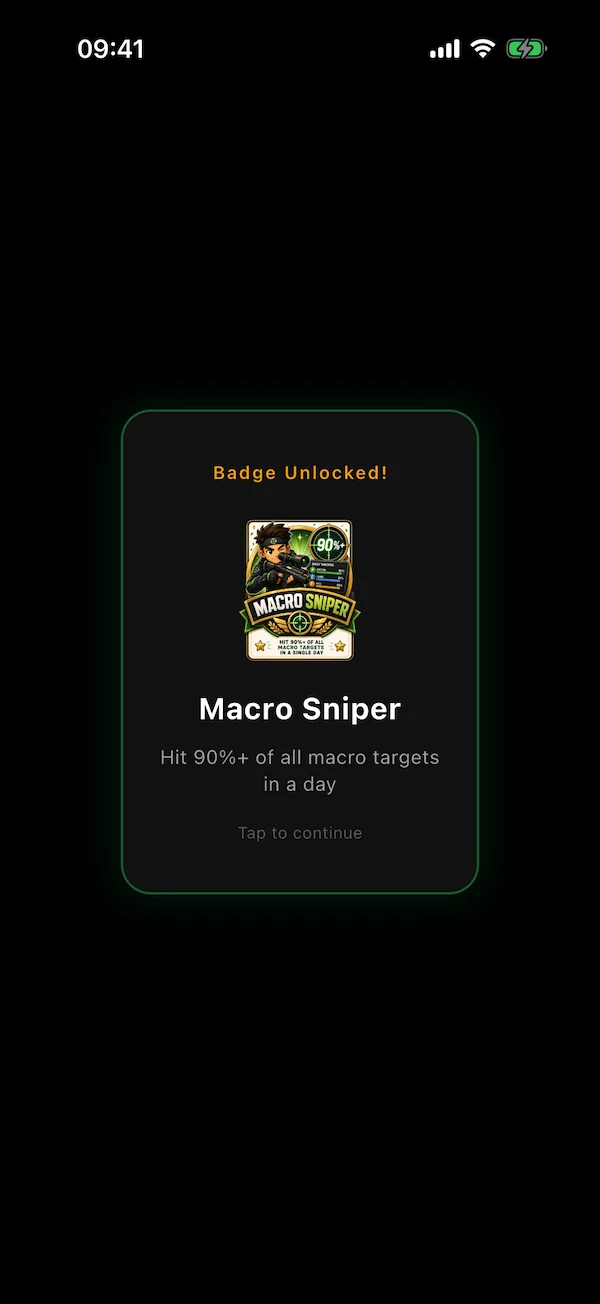
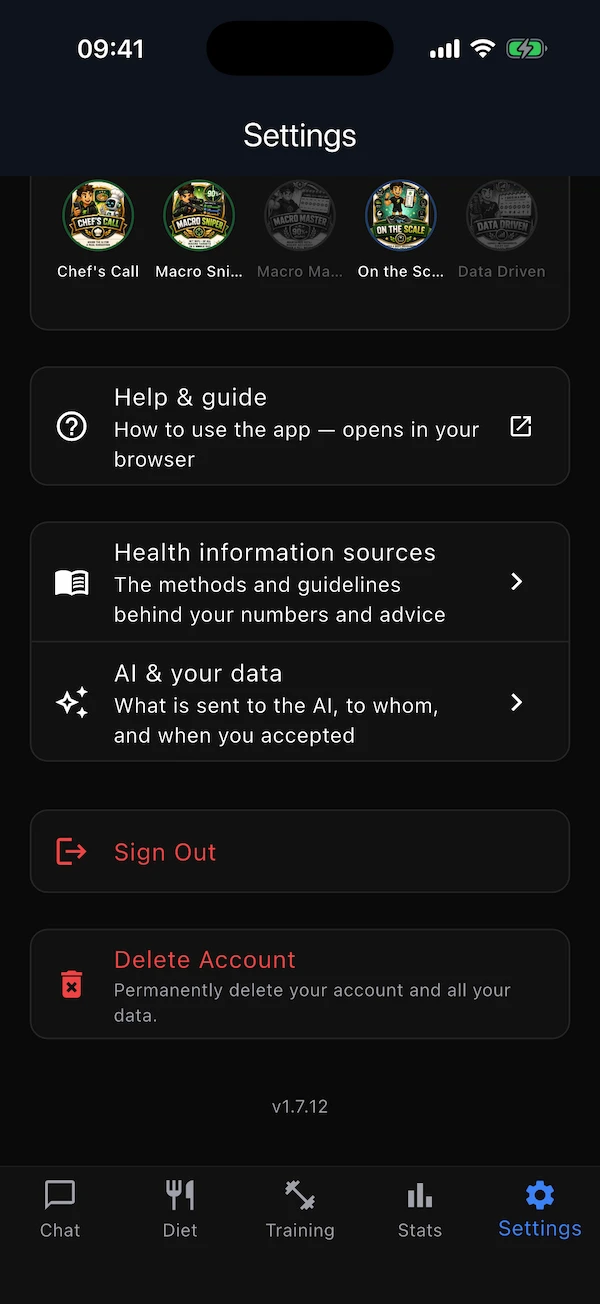
Ten badges mark the milestones that matter: the first meal you log, the first day you finish every exercise, a whole week within your macros. When you earn one, an unlock card appears the next time the app opens; the collection lives in Settings, where tapping a badge tells you what it takes and when you earned it.
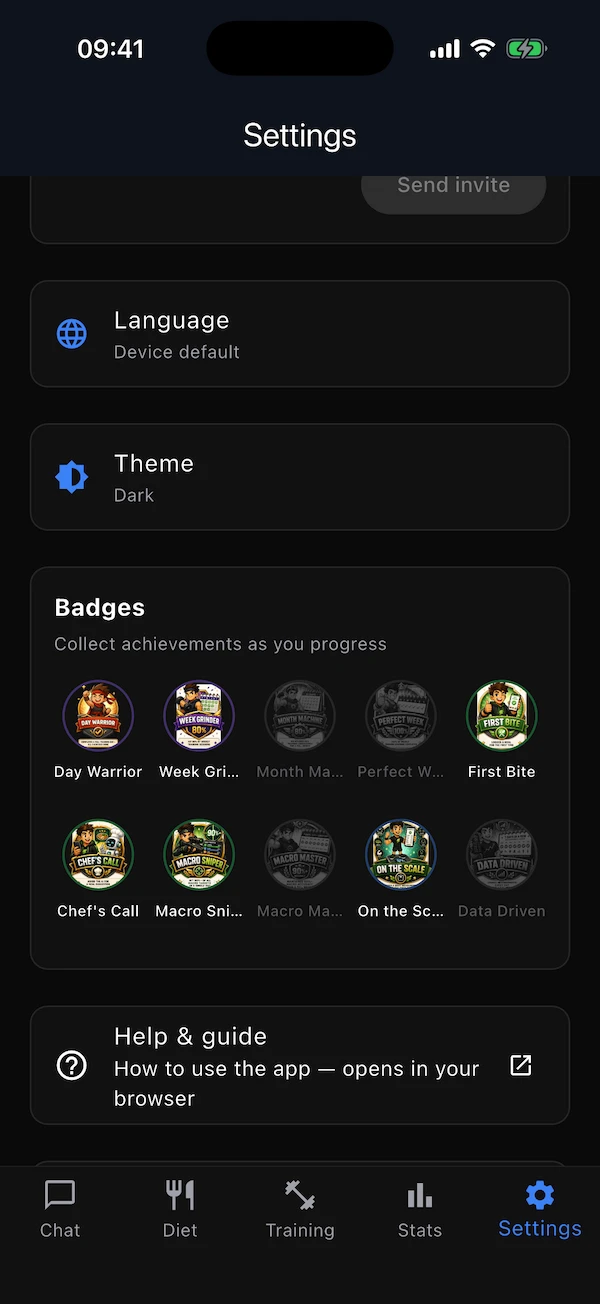
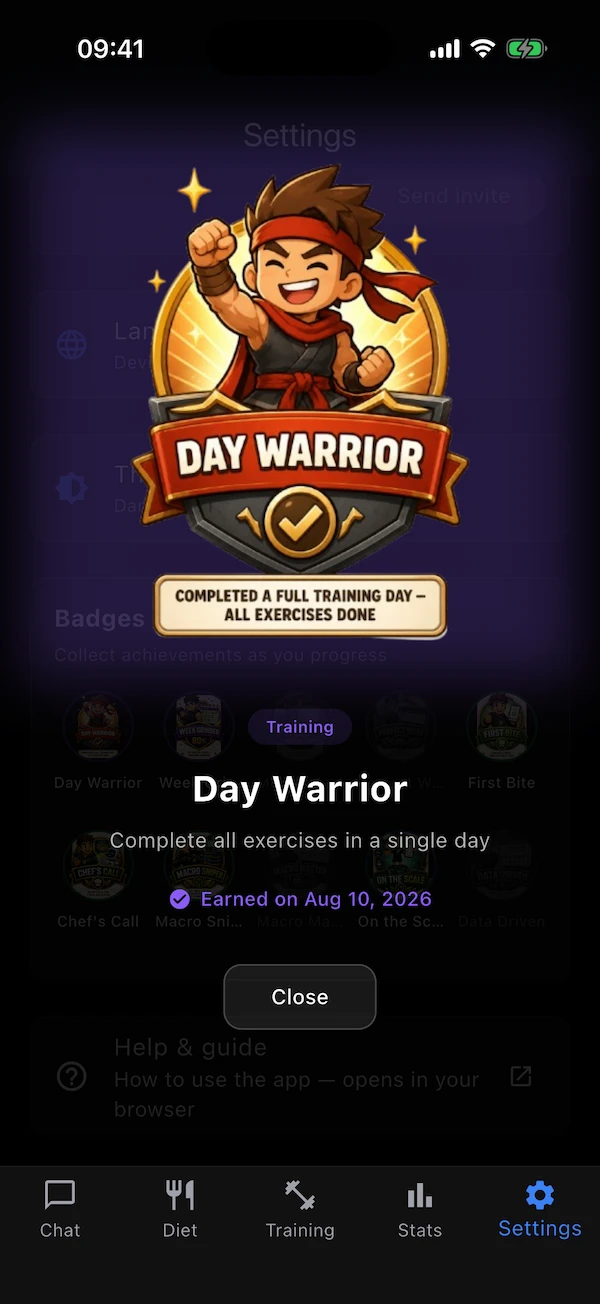
- Day Warrior
- Complete every exercise in a single day.
- Week Grinder
- Do 80% of your training sessions in a week.
- Month Machine
- Keep 80% training consistency for a full month.
- Perfect Week
- Complete 100% of a week's sessions — the only badge you can earn again and again, once per week.
- First Bite
- Log a meal for the first time.
- Chef's Call
- Ask the AI for a meal suggestion.
- Macro Sniper
- Land within 10% of all four targets in a day.
- Macro Master
- Keep that 90%+ accuracy for a whole week.
- On the Scale
- Log a body measurement for the first time.
- Data Driven
- Log measurements every day for a full week.
Working with a coach
Share your plan with someone you trust
If you train with a real coach, they can follow your progress and manage your training directly in the app — with your permission, and only for as long as you want.
Inviting your coach
Where to find it:SettingsMy coach
Enter your coach's email, read the short disclosure — your coach will be able to see your diet, training and stats, and change your training — tick I understand and agree, and send the invite. Until they answer, the card shows Invite pending with a Cancel invite button. Once they accept, it shows their name with Leave coach. You can have one coach at a time.
- Diet
- Your coach can see your food log and graphs, but cannot change or log meals for you.
- Training
- Your coach can see and edit your plan exactly as you can — swap, add, generate, tick.
- Stats
- Your coach can see your measurements and performance, not edit them.
- Chat & Settings
- Never shared. The coach only ever sees their own chat and settings.
Being a coach
Where to find it:SettingsI am a coach
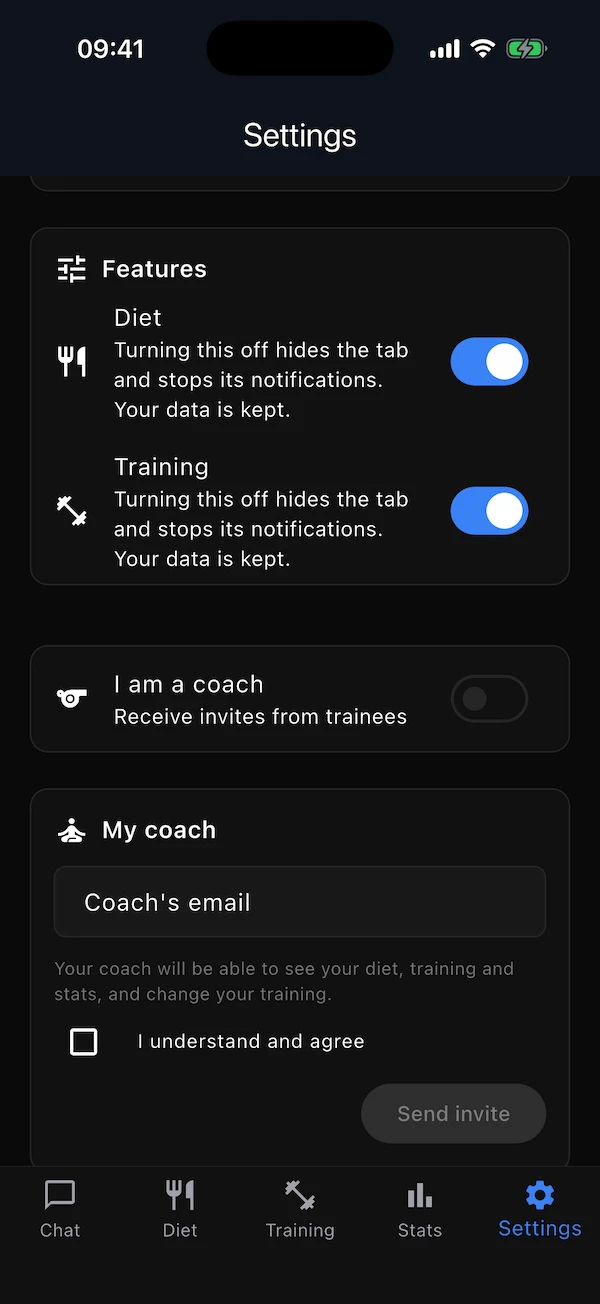
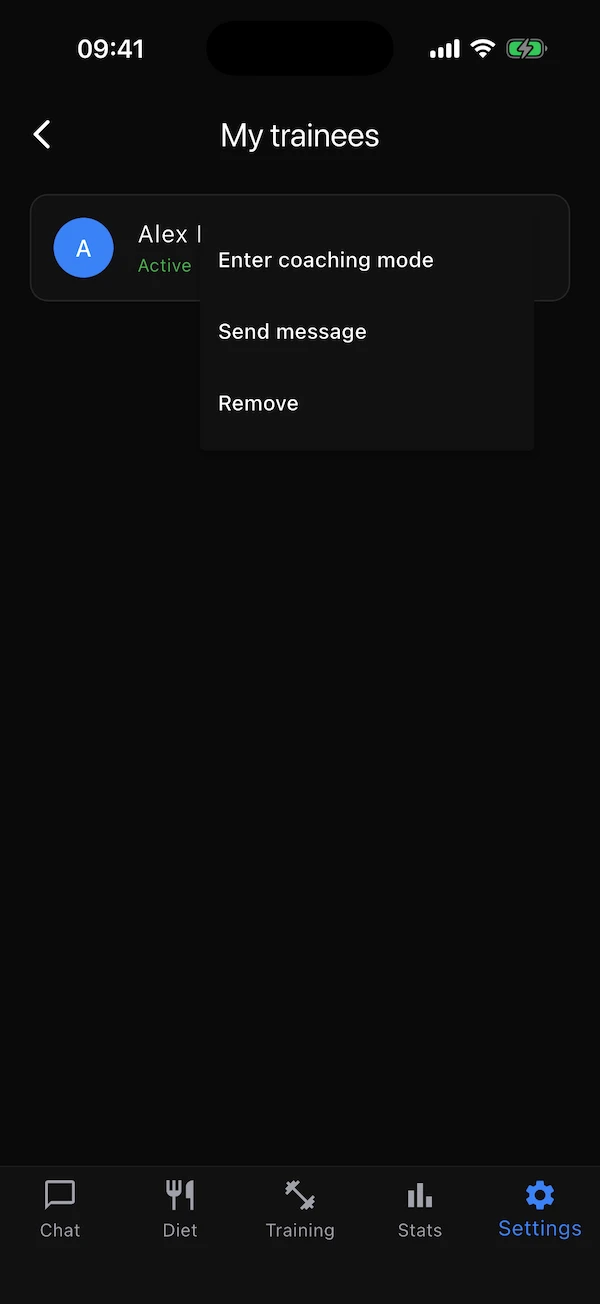
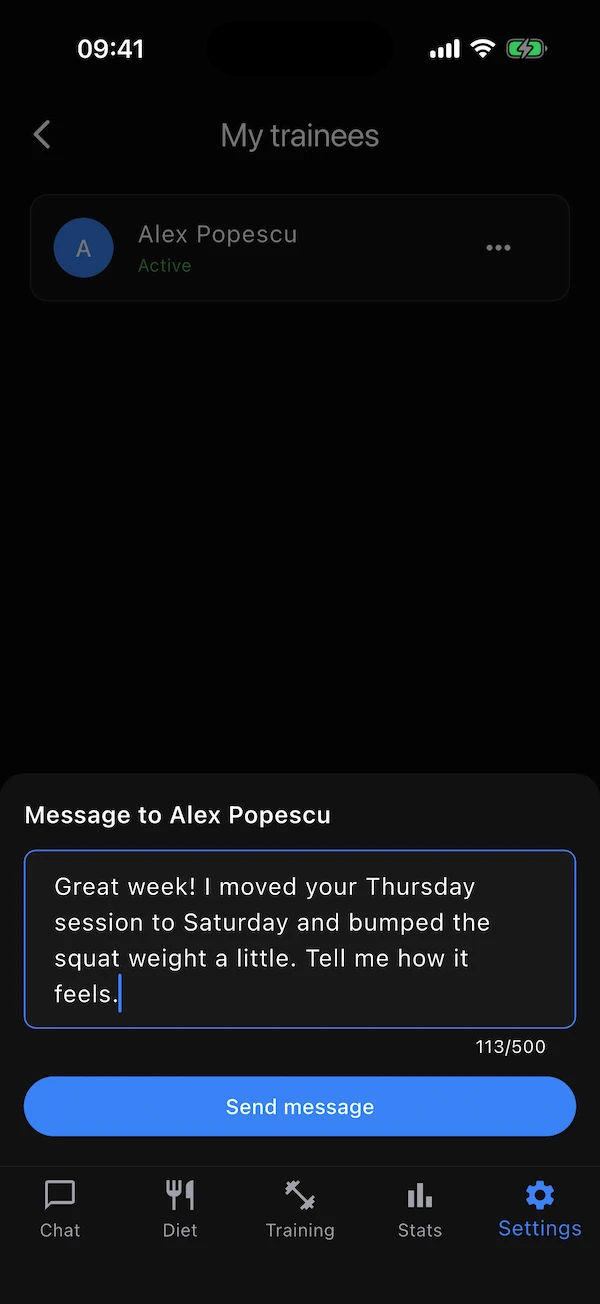
Turn on I am a coach to receive invites; a My trainees row appears under the switch. A badge on the card counts new Trainee requests; each request opens a screen where you accept or decline. My trainees lists everyone you coach with their status, and the ⋯ menu on each offers Enter coaching mode, Send message (up to 500 characters — it arrives as a notification) and Remove.
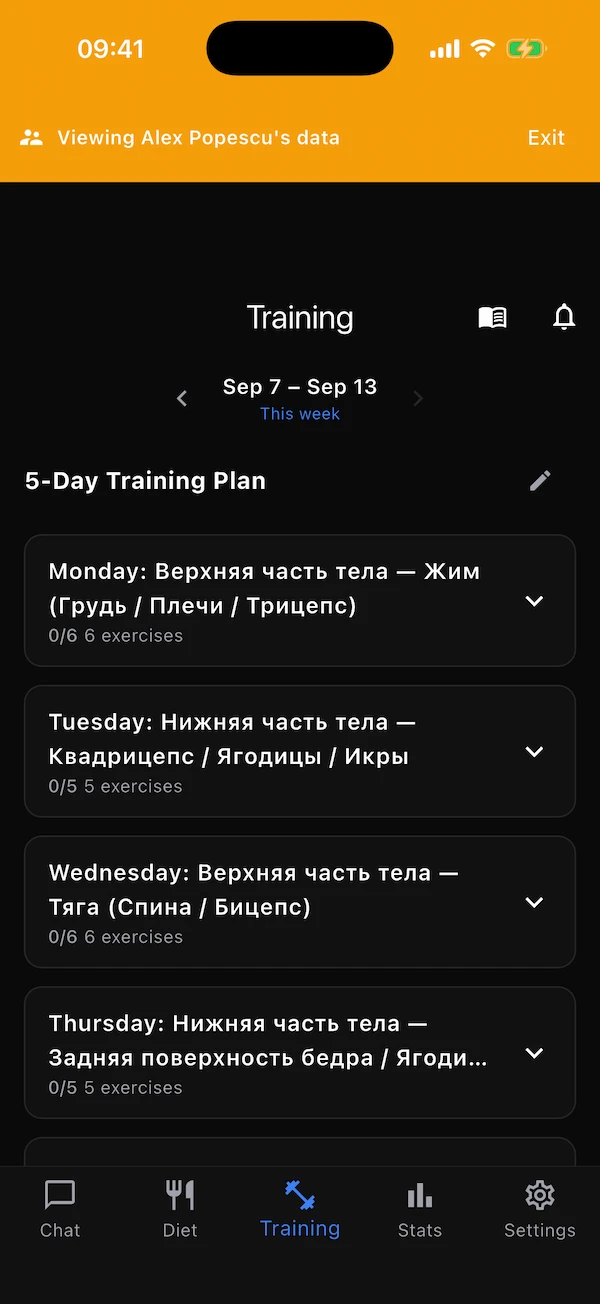
In coaching mode an amber banner across the Diet, Training and Stats tabs says whose data you are looking at, with an Exit button, so there is never any doubt whose plan you are editing. Diet and Stats are view-only; Training is fully editable, and the trainee is notified of your changes. Coaching mode ends when you exit, sign out or close the app.
Switching I am a coach off pauses coaching for all your trainees at once (they are told); switching it back on resumes it.
Settings
Everything in Settings, top to bottom
The Settings tab is one long list. Here is every card on it and what it does.
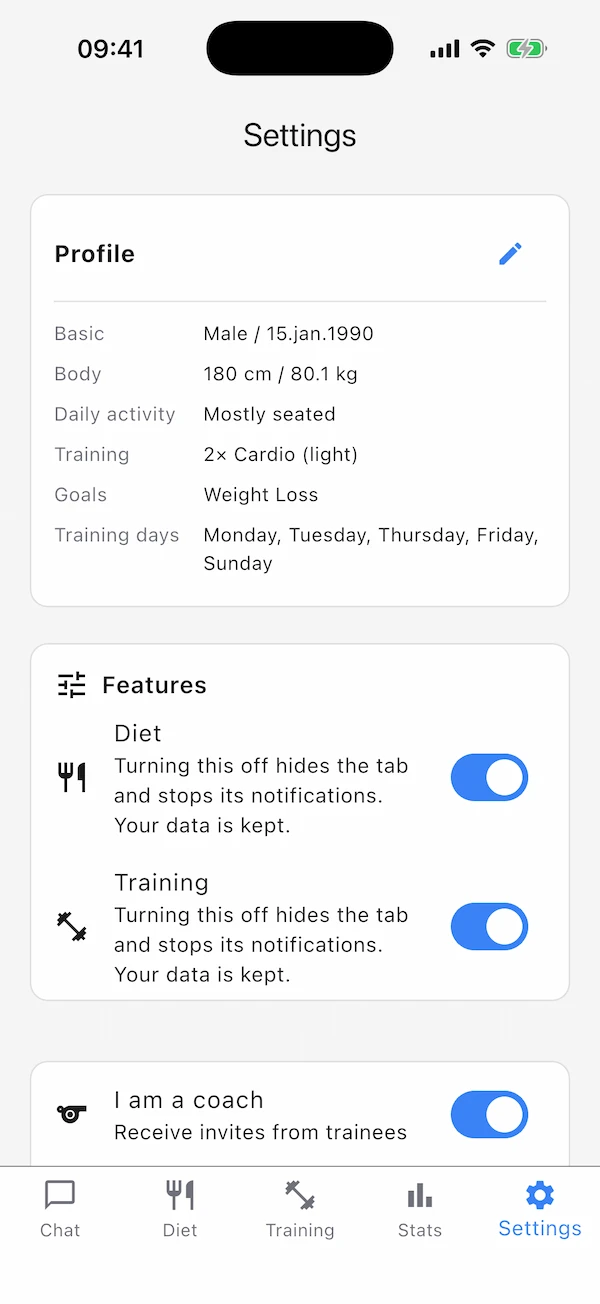
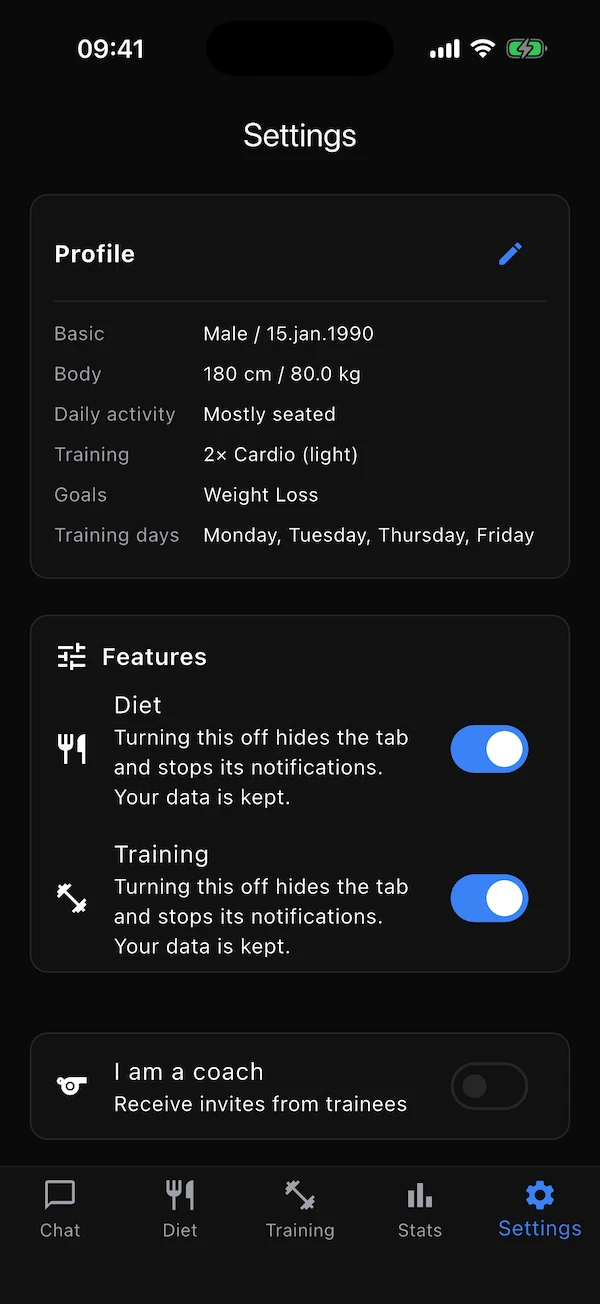
- Profile
- A summary of your questionnaire answers: basics, body, daily activity, training load, goals, diet, sports and training days. The pencil opens the editor; your plans update to match. Training days also follow the days you actually add or remove in the Training tab.
- Features
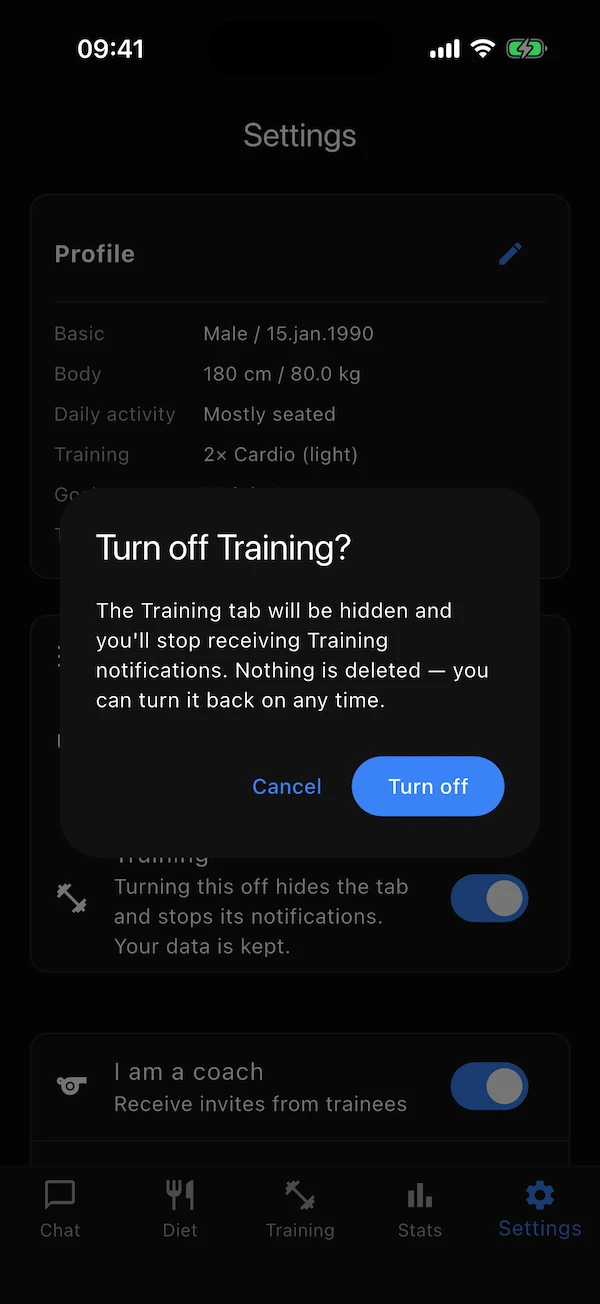
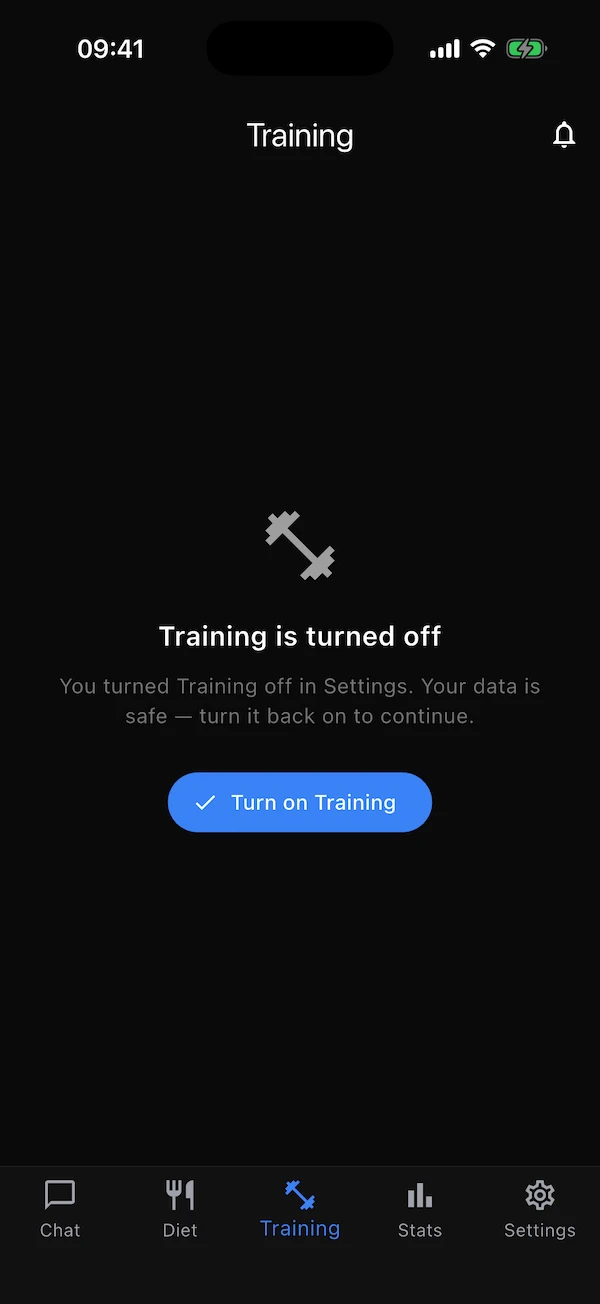
- Switch Diet or Training off if you only want one of them. The tab then shows a “turned off” screen instead of its content and that feature's notifications stop; nothing is deleted. Turning off asks for confirmation, and the tab itself offers a button to turn the feature back on. A third switch, Water tracking, turns the water reminders on (it opens the setup the first time) or off; it is greyed out while Diet is off, because water lives inside the Diet tab.
- Subscription
- Your plan (Free or Pro) and, on Pro, when it renews and where to manage it. See Free, Pro & limits below.
- I am a coach · My coach
- The coach switch, trainee requests and your trainees; and the card to invite or leave your own coach. See Working with a coach.
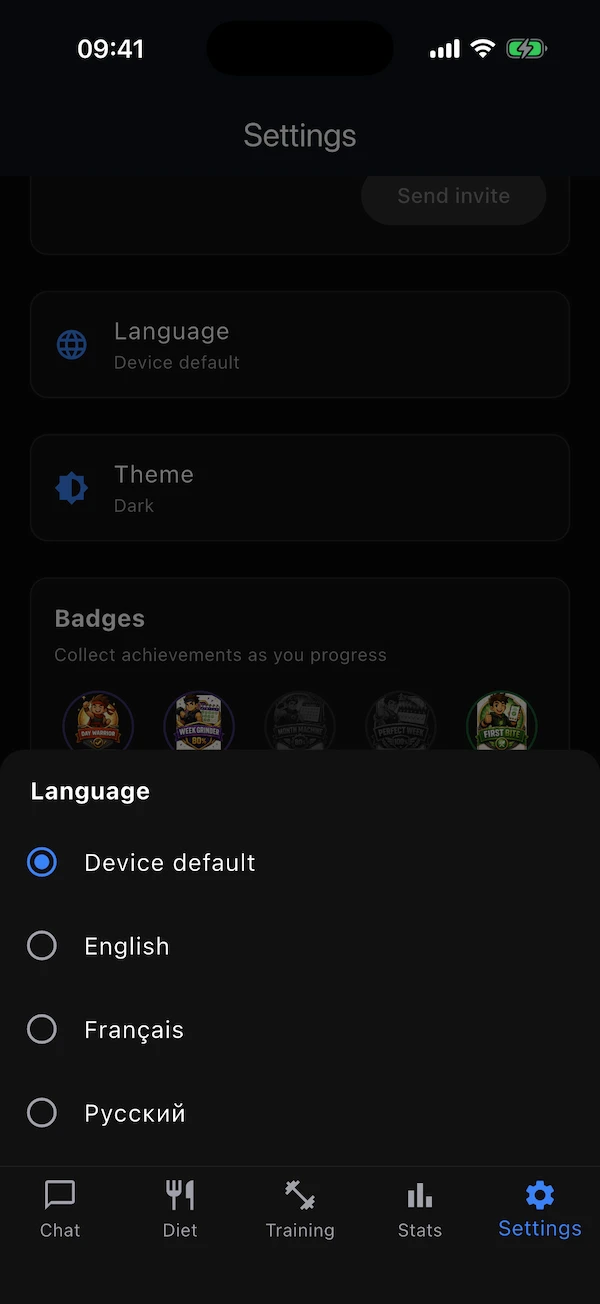
- Language
- Device default, English, Français or Русский. Changes the whole app at once, and the language of your notifications and AI answers.
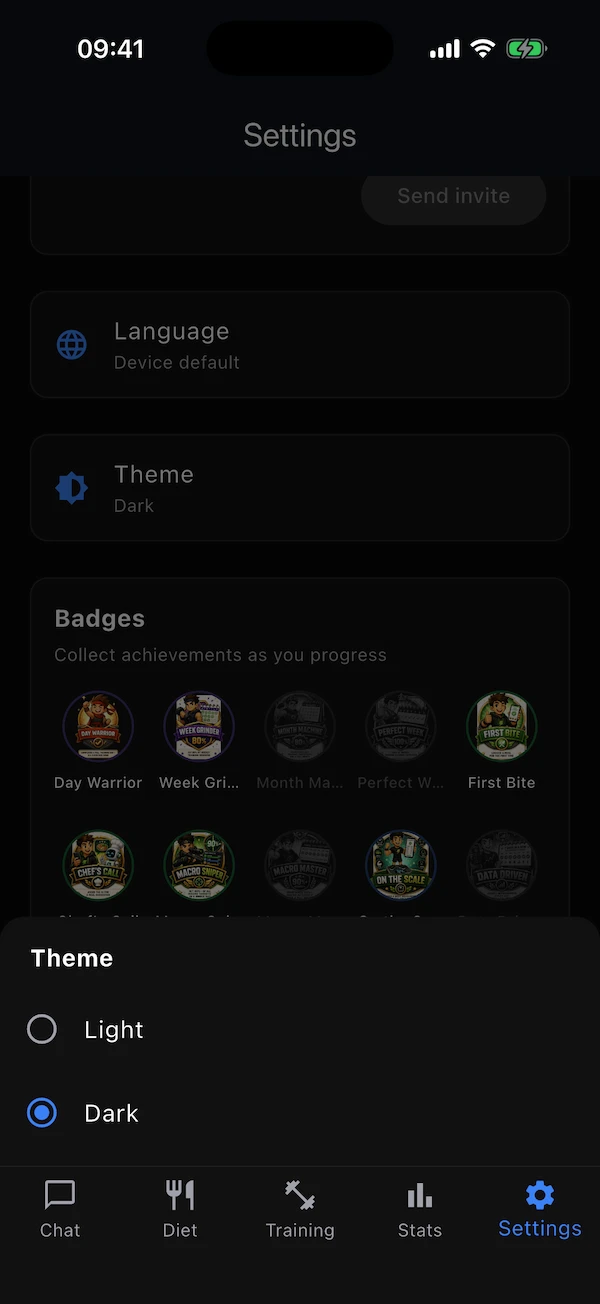
- Theme
- Light or Dark.
- Badges
- Your collection. Tap a badge for details.
- Help & guide
- Opens this page in your browser.
- Health information sources
- The published methods, databases and guidelines behind your numbers and the coach's advice, each with a link.
- AI & your data
- The disclosure you accepted at first launch, with the date you accepted it.
- Sign Out
- Signs you out on this device. Your data stays on your account.
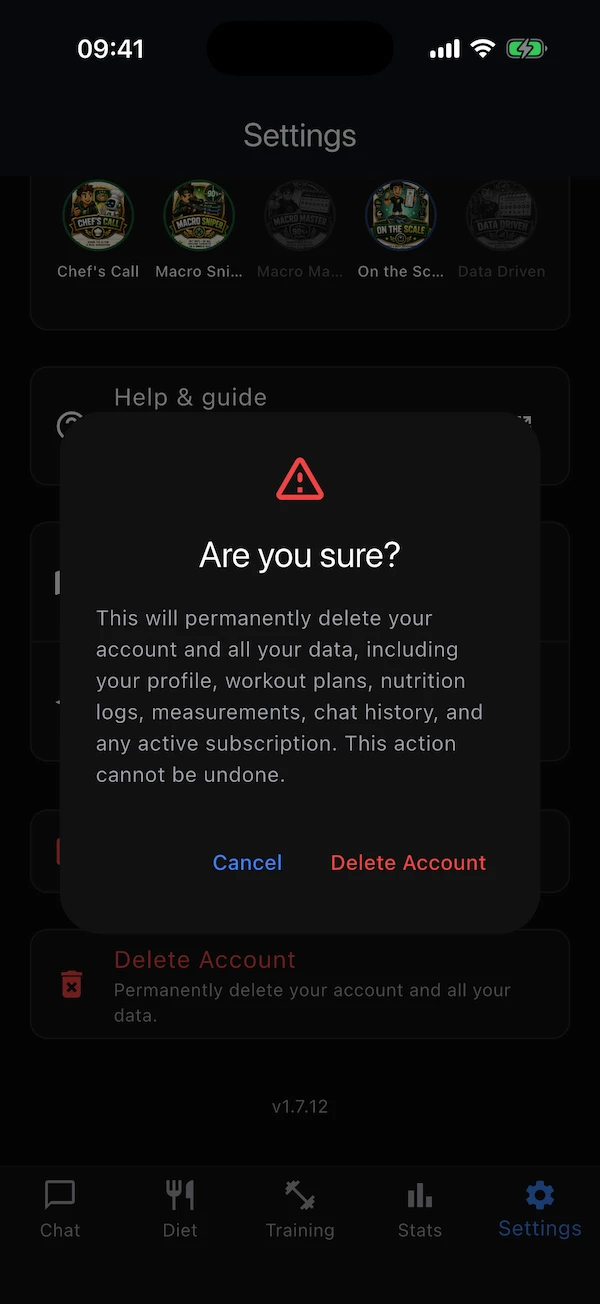
- Delete Account
- Removes your account and every piece of data with it, for good. Two confirmations, the second by typing DELETE.
Free, Pro & limits
What is free, what is Pro
Everything you need is free: targets, meal logging, suggestions, workout plans, set logging, measurements, graphs, badges, coaching and the chat. The free plan simply limits how often you can call on the AI each hour; Pro removes those limits and adds a few extras.
- Hourly limits (free)
- Per rolling hour: 3 chat messages, 2 AI meal logs, 1 meal suggestion, 1 plan generation, 1 day or exercise generation, 3 exercise explanations, 2 water plan suggestions. Manual meal logging, set logging, measurements, water logging and everything else that doesn't call the AI are unlimited.
- When you hit one
- A dialog says which feature is paused and in how many minutes it comes back. Nothing is lost — try again later or upgrade.
- Pro adds
- Unlimited chat, meal logging and suggestions, unlimited plan generation, logging meals by photo alone, and progress reports.
- Subscribing
- Settings → Subscription → Subscribe Now. Billing goes through the App Store or Google Play; use Restore Purchases on a new phone and Manage Subscription to change or cancel.
Your data & privacy
What the AI sees — and what it never sees
Regimo builds your plans with two AI services — Claude, run by Anthropic, and DeepSeek. To do that the app sends them some of your data, but only after you have accepted the disclosure, and only when you use an AI feature or when your weekly reviews and daily check-ins run.
- What gets sent
- Your profile (age, sex, height, weight, goals, restrictions, activity and training answers), the meals and photos you log, your workout plans and logged sets, your body measurements and notes, your water preferences (waking hours, glass size, training days) when you ask for a water suggestion, and the messages you send in Chat. Your water log itself — what you drank and when — stays on Regimo's servers and is never sent to an AI service.
- Who receives it
- Anthropic (Claude), to answer your chat, write your weekly reviews, swap exercises, generate new exercises and training days, and explain exercises — it is the only service that sees your chat messages. DeepSeek, to estimate calories and health grades for the food you log by text or photo, produce meal suggestions, set your daily targets, build your workout plans, keep your weekly eating-habits profile, run your daily check-in and suggest your daily water amount — it never sees your chat. OpenAI receives only the name of an exercise, never anything personal, so the app can find its illustration.
- Never sent
- Your name, your email address and your payment details.
- How it is protected
- Data is encrypted in transit to all three. Anthropic and OpenAI may use what they receive only to return a result to Regimo, may not sell it and do not train their models on it. DeepSeek does not sell personal data, but its privacy policy says it may use what it receives to improve its services and train its models, and that it stores and processes data in the People's Republic of China.
- Sources
- Every method behind a number, and every guideline the coach relies on, is listed with a link in Settings → Health information sources and behind the book icon on each tab.
- Withdrawing consent
- The app cannot work without the AI coach, so withdrawing consent means deleting your account (Settings → Delete Account). Everything is removed — profile, plans, logs, measurements, chat history and any coaching links.
Common questions
Quick answers
Is my data private?
Yes. Your information is only visible to you, unless you deliberately invite a coach — and you can end that at any time from Settings. You can delete your account and all its data whenever you like.
Why did my calorie target go up when I added training?
Because it should. Your target includes the energy of the sessions you told the app about, so adding sessions — or harder ones — raises it. That is the app feeding the work you actually do.
Should my job count as training?
No — keep them separate. Answer the daily-activity question about your job and ordinary day, and the sports question about deliberate training. The app adds them together itself.
I changed my training or my weight. Do my targets update on their own?
No, and that is deliberate — your targets do not move under you. Tap Regenerate on the Diet tab whenever your training, weight or goals have changed, and they will be rebuilt from your current answers and your latest weigh-in.
Why is today's nutrition grade so low in the morning?
Because it is computed as if the day ended now, and you have not eaten your calories yet. It reads “so far today” for that reason and settles once the day is over.
Do I have to log every single meal?
No. Log what you can — even a few meals a week helps the app understand your habits and give better suggestions. Nothing breaks if you skip days; the graphs simply show a gap.
Why can't I swap an exercise?
Swapping is only offered on today and future days of the current week, and only on exercises you have not marked done. On a past day you can still edit, delete and tick exercises; past weeks are read-only.
I did a lighter week. Will my weights drop next week?
No. Planned weights only ever move up, to the heaviest set you logged. A recovery week keeps the previous prescription.
What if I do a sport that is neither cardio nor strength?
Pick whichever it resembles more and match the intensity to how hard it feels. A football match or a long swim behaves like cardio; a climbing or bodyweight session behaves like strength. You can also list the sport itself in your profile, which the coach uses when planning.
What language is the app in?
English, French and Russian. It follows your phone's language automatically, and you can change it in Settings → Language. Your notifications and AI answers follow the language you choose.
Can my coach change my food log?
No. A coach can see your food and progress, but they can only make changes to your training. Your meal log stays yours.
I turned off a feature by mistake — did I lose anything?
No. Turning a feature off only hides it. Open that tab and tap the button to turn it back on; everything is exactly where you left it.
The hourly limit dialog appeared. What now?
Wait the minutes it shows and try again, or keep going with the parts that never count — manual meal entry, set logging, measurements. Pro removes the limits.
I don't see Drink and Postpone on the water reminder.
On iPhone, press and hold the notification (or pull it down) — the two buttons appear under it. On Android they are on the notification itself. Tapping the text instead opens the water screen, where you can log the glass by hand.
My water reminders arrive a few minutes late.
Android delays inexact reminders to save battery. Open the water screen, turn on Exact timing and allow the permission Android asks for. On iPhone reminders are already delivered on time.
Does the water in my meals count?
Yes, when water tracking is on. Plain water, sparkling water and unsweetened tea or coffee mentioned in a logged meal are added to the day; juice, milk and soda are food, not water. To correct it, edit the meal — its water is removed with it if you delete the meal.
How do I delete my account?
Settings → Delete Account. It removes your profile, plans, logs and history for good. This can't be undone.
Still stuck?
Ask the coach in the app — it can explain anything about your plan. Or write to us and a human will get back to you.